How DDNS lets you reach a camera from outside
Your internet connection has a public IP address that your provider changes from time to time. DDNS gives you a fixed name — myhome.fastddns.org — and something on your network keeps telling the DDNS service what that address currently is. You type the name instead of chasing the number, and it keeps working after the address changes.
That is the whole of what DDNS does. It does not open your camera to the internet: a port still has to be forwarded on the router, and if your provider puts you behind CGNAT there is no way in at all. Both of those are covered further down, because they are where most camera setups actually fail.
The shortest path, if you just want it working
- Create a hostname. Sign in at FastDDNS and pick a name of at least six letters or digits. The free plan includes one permanent hostname.
- Give something the job of reporting. Open the hostname, look at the parameter cards, and pick the route that matches your recorder from the table below.
- Forward the port you watch on. Then confirm from outside with the port checker.
Steps one and three are the same whatever you own. Step two is where the choice is, and it is the rest of this page.
Pick the way your device reports its IP
The only real decision is what sends the update. Six routes exist, and which one fits is decided by what your recorder's menus allow — not by the brand on the box.
| Your device | Route | Trade-off |
|---|---|---|
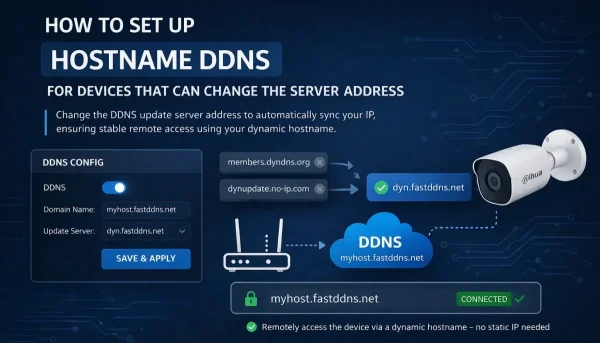
| Its DDNS menu lets you type a custom server address | Change the DDNS server address | Cleanest option. Nothing else on the device is touched. |
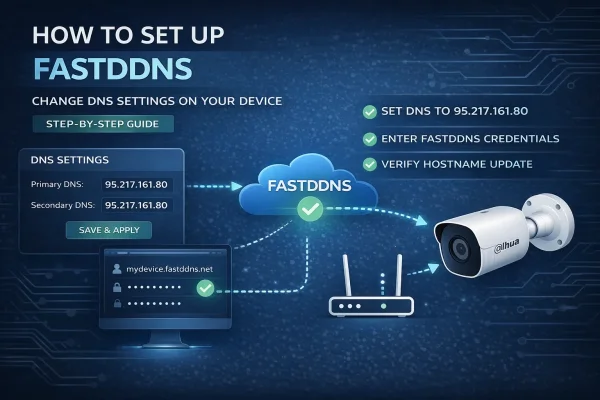
| Its DDNS menu offers only NO-IP or DynDNS and no editable server | Change the device's DNS | Widest compatibility, biggest side effects — it may cost the device its clock sync and its vendor cloud app. |
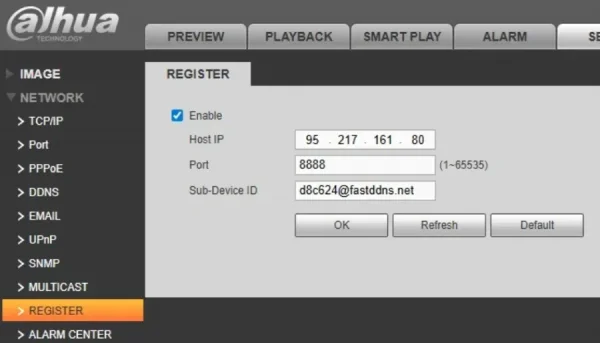
| Dahua with no usable DDNS menu | Auto Register | Three values, device dials out. Only on firmware that has the Register page. |
| Xiongmai recorder where the DNS must stay untouched | Email alerts | Leaves DNS alone, but the hostname only moves when an alarm fires. |
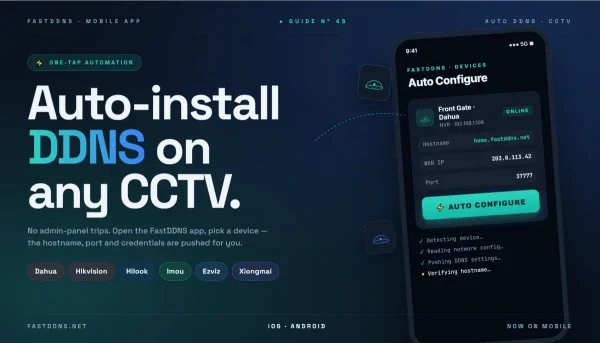
| Any supported brand, and you would rather not type | Automatic setup in the app | The app signs in and configures the device for you, over your local network. |
| The device cannot do any of it | A PC on the same connection | One always-on machine covers every device behind the router. |
Two of those deserve a word of warning up front. Changing the DNS is the most widely compatible route and the most invasive: the hostname page warns that it may disable network features on the device, naming NTP clock sync, the device's own email alerts and P2P cloud access. And the email method only reports when an alarm actually fires, so a camera that sees nothing for a fortnight lets the hostname go stale.
Per-brand starting points
Brands matter less than menus, but they do decide which guide to open first. The ports below are the ones the automatic setup uses to reach each family on your own network — a useful hint at what that device listens on, but read the real numbers off its own port page before you forward anything.
| Brand | Port the automatic setup connects on | Start here |
|---|---|---|
| Dahua, IMOU | 37777 | Dahua DDNS setup |
| Dahua without a DDNS menu | 37777 | Dahua Auto Register |
| Hikvision and OEM builds | 80 or 8000 | The server-address method |
| EZVIZ, HiLook | 8000 | The server-address method |
| Xiongmai (XMEye, vMEyeSuper, GoodEye) | 34567 | DNS change |
| Xiongmai where the DNS must stay as it is | 34567 | Email alerts |
| Tiandy | 3001 | Automatic setup in the app |
Devices sold under other names are frequently built on one of these firmware families, which is why the app's automatic setup offers an Other option that tries every protocol it knows rather than asking you to guess the badge.
What you need before any of it works
A real public IP
Open the WAN status page on your router and read the address it received. An address inside 100.64.0.0/10 is the giveaway for carrier-grade NAT: your provider is sharing one public address between many customers, and no DDNS service can open a way in through that. A private address — 10., 172.16–31. or 192.168. — means something upstream is doing NAT, which may be your provider or may just be a modem-router of your own in front of this one; sort out which before concluding anything, because a second box of your own is fixable and CGNAT is not. If you would rather not read router pages, the FastDDNS app has a CGNAT checker.
One hostname, not one per camera
Everything behind your router shares the same public address, so a single hostname already covers every camera in the building. Tell them apart by giving each a different forwarded port. Creating a hostname per camera uses up the quota on your plan for nothing, and pointing many hostnames at one address can trip the abuse limit.
A forwarded port for each device you want to reach
This step is easy to overlook, and skipping it is why a correctly configured hostname can still show nothing. The division of labour is simple: DDNS keeps the name pointed at your address, and the forwarding rule decides what is reachable there. Point each rule at the recorder's fixed local address, then check from outside with the port checker, which has presets for the common camera ports. If something is still wrong at that stage, the diagnostic guide works through it fault by fault.
How to tell whether it is working
Three checks, in order, and they narrow the problem down between them:
- The hostname page. The address under the name should be your current public IP, and Last Updated should be recent. If it is, the reporting half works.
- The update log. The Updates from device box on the same page shows the reports the server matched to this hostname, with the status it returned. good means the address changed, nochg means it was already correct, and badauth means the credentials were rejected. An empty log means nothing has been matched to this hostname — either nothing was sent, or what arrived did not identify it.
- A lookup from outside. From a phone on mobile data or any machine off your network:
nslookup myhome.fastddns.org 1.1.1.1If the name resolves correctly but the camera still does not answer, the problem is the forwarding rule, not DDNS.
Limits worth knowing before you build on this
- No certificate. FastDDNS issues the hostname, not TLS. Opening a camera's web interface over plain HTTP means the password you type crosses the internet in the clear — a reason to prefer the manufacturer's client, or to put your own reverse proxy with a certificate in front.
- Hostnames expire. The free plan gives one permanent hostname, renewed yearly, plus temporary hostnames that live 30 days. An expired hostname has its DNS record removed, which looks exactly like a broken setup.
- The name cannot be renamed. Choose it carefully — changing it later means creating a new one and reconfiguring the device.
- Nothing survives CGNAT. Worth repeating, because it is the one limit that no amount of correct configuration gets around — check for it before you spend an evening on the rest.
Frequently Asked Questions
Is DDNS enough to watch my cameras remotely?
Not on its own. DDNS solves the changing-address problem. You also need a forwarded port on the router pointing at the recorder, and a public IP that is genuinely yours. With all three in place, the manufacturer's app connects to your hostname exactly as it would to a fixed address.
My recorder's DDNS list has no FastDDNS entry. Now what?
That is normal — almost no CCTV firmware lets you add a provider. Two routes get around it: change the DDNS server address if the firmware lets you type one, or change the device's DNS so the NO-IP or DynDNS entry it already has resolves to FastDDNS instead. The table above says which fits your device.
Do I need one hostname for each camera?
No. Every device behind your router shares one public address, so one hostname covers all of them. Give each camera a different forwarded port and use the same name with a different port number for each.
Which method should I pick if my camera supports several?
Prefer the one that changes the least. If the firmware lets you type a custom DDNS server, use that — nothing else on the device is affected. Changing the DNS is the fallback when the provider list is locked, and it may cost the device its clock sync and cloud app. The email and Auto Register routes exist for recorders where neither of the first two is available.