Introduction
If you own a Dahua IP camera, NVR, or DVR, accessing it remotely over the internet becomes much easier with a free Dynamic DNS (DDNS) hostname. Instead of remembering a constantly changing IP address, you simply use a fixed domain name like yourcamera.fastddns.net — from anywhere in the world.
This guide walks you through setting up FastDDNS.net — a completely free Dynamic DNS service — on a Dahua device whose firmware offers a DDNS menu with an editable server address. That covers most Dahua cameras, NVRs and DVRs, and many rebranded models, though menu names differ between firmware generations.
What Is DDNS and Why Do You Need It?
Most home and business internet connections use a dynamic public IP address, meaning your ISP assigns a new IP every time you reconnect. This makes remote access unreliable.
DDNS (Dynamic DNS) solves this by automatically updating a fixed hostname whenever your IP changes. FastDDNS.net provides this service for free, and works with Dahua's built-in DDNS client.
DDNS and port forwarding are two different jobs. Your Dahua device sends its DDNS update outbound, the same way it loads any web page, so no router port has to be open for the hostname to start working. Port forwarding is what you add afterwards, so that traffic coming inbound from the internet can reach the device. DDNS gives the address; port forwarding opens the door. This guide does them in that order.
Requirements Before You Begin
Before starting the configuration, make sure you have the following ready:
| Requirement | Details |
|---|---|
| ✅ Internet connection | The device must be online and able to reach the internet outbound |
| ✅ A public IPv4 address | Your router's WAN address must be a real public IP, not a carrier-grade NAT address — see the CGNAT section below |
| ✅ Login credentials | The admin account and the password you set when the device was first initialised |
| ✅ LAN IP address | Typically 192.168.1.108 on a factory-reset Dahua device |
| ✅ FastDDNS.net account | Register free at fastddns.net |
Note on the password: Dahua firmware from roughly 2017 onwards forces you to set an admin password during first-time initialisation, so there is no working
admin/admindefault. If you inherited an older device that still accepts a shipped default, change it before exposing anything to the internet.
Step-by-Step: Configure DDNS on Dahua Devices
Step 1 — Create a Free Hostname on FastDDNS.net
First, you need a hostname. Head over to FastDDNS.net and create a free account, then register a hostname (e.g., mycamera.fastddns.net).
For detailed instructions, see: How to Create a Free Dynamic DNS Hostname on FastDDNS.net
Step 2 — Note Your DDNS Credentials
After creating your hostname, save the following information — you'll need it when configuring your Dahua device:
- Domain Name (e.g.,
mycamera.fastddns.net) - Account / Username
- Password
Step 3 — Log In to Your Dahua Device's Web Interface
Open a browser on the same local network and navigate to your device's local IP address:
http://192.168.1.108If you've changed the device's IP address or its web port, use the updated address instead.
Sign in with the admin account and the password set during initialisation to access the settings panel.
Step 4 — Update DNS Server Settings
Navigate to: Settings → Network → TCP/IP
If the device is failing to resolve names, point it at a public resolver:
| DNS Field | Value |
|---|---|
| Primary DNS | 8.8.8.8 |
| Secondary DNS | 8.8.4.4 |
Click Save before moving to the next step.
Step 5 — Configure DDNS Settings
Navigate to: Settings → Network → DDNS
Configure the fields as follows:
- Enable DDNS — Check/tick to enable
- DDNS Type — Select
DynDNSorNo-IP - Server Address — Delete the default server address and replace it with:
dyn.fastddns.net- Domain Name — Enter the hostname you created in Step 1
- Account — Enter your FastDDNS.net username
- Password — Enter your FastDDNS.net password
Click Save to apply the settings.
⚠️ Important: The default server addresses (
members.dyndns.orgordynupdate.no-ip.com) must be completely deleted and replaced withdyn.fastddns.net. Do not leave the original address.
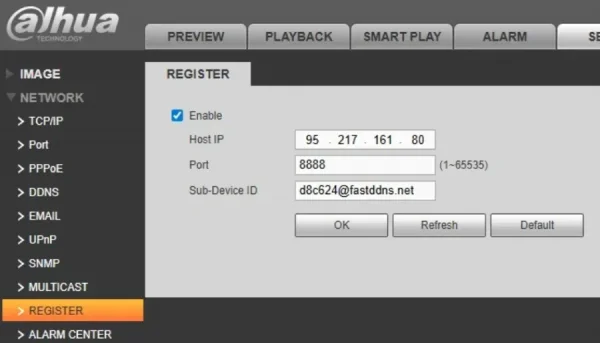
No DDNS menu on your model? Some Dahua devices instead expose an Auto Register feature — see Dahua Auto Register DDNS setup.
Step 6 — Check That the Hostname Resolves
This is the step that tells you whether DDNS itself is working — before any router configuration enters the picture. Open your FastDDNS.net dashboard and confirm the hostname now shows your current public IP address.
- ⏱️ The first update typically appears within 30 seconds to 5 minutes
- The IP shown should match what your router reports as its WAN address
Then confirm from your own machine that public DNS agrees. On Windows:
nslookup mycamera.fastddns.netOn macOS or Linux:
dig +short mycamera.fastddns.netIf that returns your public IP, DDNS is done and working. Nothing on your router had to change to get this far.
Step 7 — Forward the Ports You Need for Remote Viewing
A resolving hostname points visitors at your router. It does not let them through it. To reach the device from outside, forward the ports your device actually uses, in your router's NAT or port forwarding section:
| Port | Used for |
|---|---|
80 (TCP) | The device's web interface. Many ISPs block inbound port 80 — changing the device's web port to something like 8080 and forwarding that is often more reliable |
37777 (TCP) | Dahua's SDK/service port, used by DMSS, gDMSS/iDMSS and SmartPSS |
554 (TCP) | RTSP, only if you stream to a third-party client or NVR |
Forward each one to the device's LAN IP address. Give the device a static LAN IP or a DHCP reservation first, otherwise the forwarding rules will point at the wrong host after a reboot.
Only forward what you actually need, and never expose a device that is still using a weak or shipped password.
Step 8 — Test From Outside Your Network
Use the Port Check Tool against your hostname and the port you forwarded. Run it from a connection that is not your own — mobile data works well, because many routers cannot loop a connection back to themselves from the inside.
- Port open — you are finished; connect using
mycamera.fastddns.netand your port - Hostname resolves but the port is closed — the forwarding rule, the device's LAN IP, or an ISP block is the problem, not DDNS
- Hostname does not resolve at all — go back to Step 6
What If Your Connection Is Behind CGNAT?
Carrier-grade NAT means your ISP shares one public IP between many customers, and your router's WAN address is a private one. No DDNS service can work around this: the hostname will point at an address that does not belong to you alone, and inbound connections never arrive.
You are likely behind CGNAT if your router's WAN IP falls in one of these ranges:
| Range | Meaning |
|---|---|
100.64.0.0 – 100.127.255.255 | The range reserved specifically for carrier-grade NAT |
10.x.x.x, 172.16–31.x.x, 192.168.x.x | Private addresses — either CGNAT or a second router in front of yours |
Compare your router's WAN IP with the address your FastDDNS dashboard reports. If they differ, something upstream is translating your traffic. The realistic options are to ask your ISP for a public IPv4 address (often a small monthly fee), or to reach the device through a VPN or tunnel that you host elsewhere.
Troubleshooting Common Issues
The hostname isn't updating:
- Double-check that the server address is
dyn.fastddns.net(no typos, no leftovermembers.dyndns.org) - Re-enter the FastDDNS username and password — a wrong credential fails silently on many Dahua firmware versions
- Confirm the device can resolve names at all (Step 4) and that its clock and time zone are correct
- Check whether the WAN IP is private, which points at CGNAT or double NAT rather than a DDNS fault
The hostname resolves but you cannot connect:
- That is a port forwarding problem, not a DDNS one — recheck Step 7 and test again from outside your own network
- Confirm the device still holds the LAN IP your forwarding rule points at
- If port 80 is the one failing, try a different external port; ISP blocking of inbound 80 is common
Cannot log in to the device web interface:
- Make sure you're on the same local network
- Older Dahua web interfaces depend on browser plugins that current browsers no longer load — the DMSS mobile app or SmartPSS is usually the easier route
DDNS type not available:
- Some older Dahua firmware versions label the DDNS type differently. Try both
DynDNSandNo-IP— either will talk to FastDDNS.net
Conclusion
Setting up free DDNS for Dahua cameras and NVRs with FastDDNS.net takes only a few minutes and gives you a permanent address that follows your changing public IP — completely free of charge. Remember the split: DDNS keeps the address current, port forwarding decides what is reachable, and CGNAT is the one situation neither can fix.
Get started at FastDDNS.net — no credit card required.
Where this guide applies: Dahua IP cameras, NVRs and DVRs whose firmware exposes Settings → Network → DDNS with an editable server address. Rebranded devices built on Dahua firmware often expose the same menu, but labels and available DDNS types vary by model and firmware version — check your own device's DDNS screen before assuming it matches the screenshots here.