What Auto Register does on a Dahua device
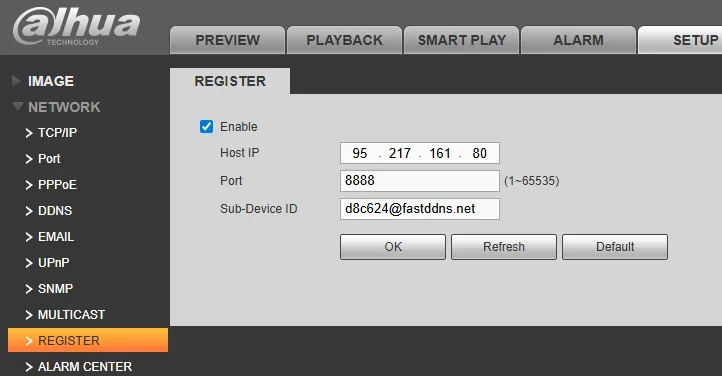
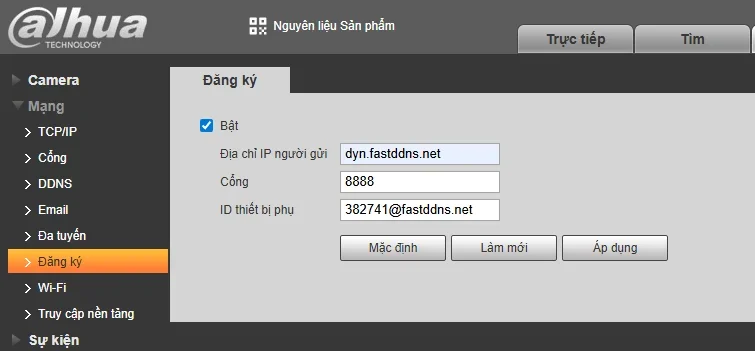
Open Setup > Network > Register on the recorder, tick Enable, and fill in three values from your FastDDNS hostname page: the server address, port 8888, and the Device ID. From then on the device opens the connection outwards on its own schedule, and every time it does, FastDDNS reads your public IP from that connection and points the hostname at it.
That is why this method exists: it needs no DDNS menu on the device at all. What it does not do is open a way in — you still forward the port you actually watch the camera on, and none of this works behind CGNAT.
How the update reaches FastDDNS
Worth knowing, because it explains both the strength and the one thing to be careful about. Port 8888 is a port on our server, not on your router. The recorder dials out to it; a listener there reads the Device ID out of the packet the device sends, notes the address the connection came from, and hands that pair to the updater. From there it takes the same path as an update sent through the email alert method, and the DNS record follows shortly after the report arrives.
Two consequences follow:
- Nothing has to be opened on your router for the update itself. Outbound connections are allowed by default on a normal home router, which is what makes Auto Register work on devices where nothing else will.
- The Device ID is the credential. No password is checked on this path — the ID alone identifies the hostname. Treat it the way you would treat a password: keep it out of forum posts, and blank it out of screenshots before you share them. Every hostname has its own.
When to use it, and when not to
Use Auto Register when the device has no usable Network > DDNS section: the menu is missing entirely, or it exists but its provider list has nothing you can point at FastDDNS.
If the DDNS menu is there and works, use it instead: it is the better-trodden path and the Dahua DDNS setup guide covers it. The two are alternatives, not layers — pick one.
| Network > DDNS | Auto Register | |
|---|---|---|
| Needs a DDNS menu on the device | Yes | No |
| Values to enter | Provider, hostname, username, password | Server, port, Device ID |
| What identifies you | Username and the hostname's password | The Device ID alone |
| Needs anything opened on your router for the update itself | No | No |
| Use it when | The DDNS menu exists | It does not |
Before you start
- A hostname on FastDDNS — the Device ID is generated per hostname, so create it first.
- A Dahua camera, DVR or NVR with a Register or Auto Register entry under its network settings.
- Access to the device's web interface from a computer on the same network, and its admin login.
- A real public IP. If your provider puts you behind CGNAT, remote access will not work whichever method you choose — the answer on FastDDNS and CGNAT explains what is left to try.
Step 1 — Copy the three values
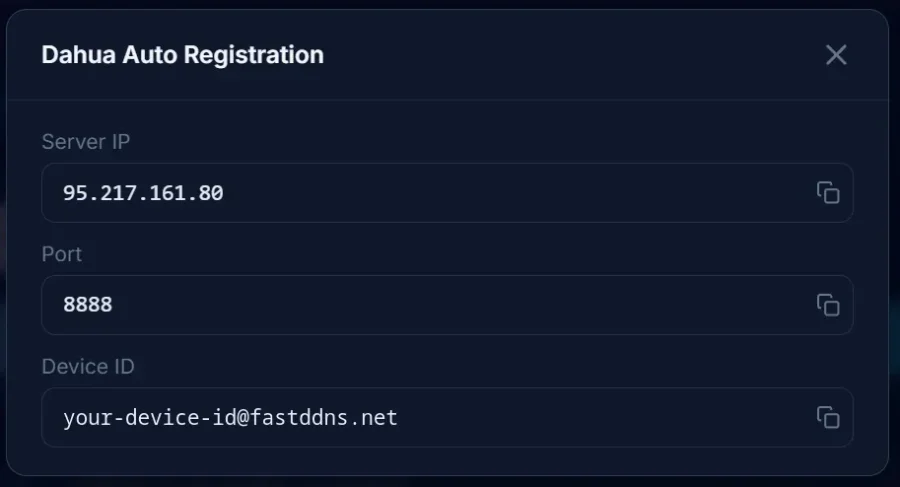
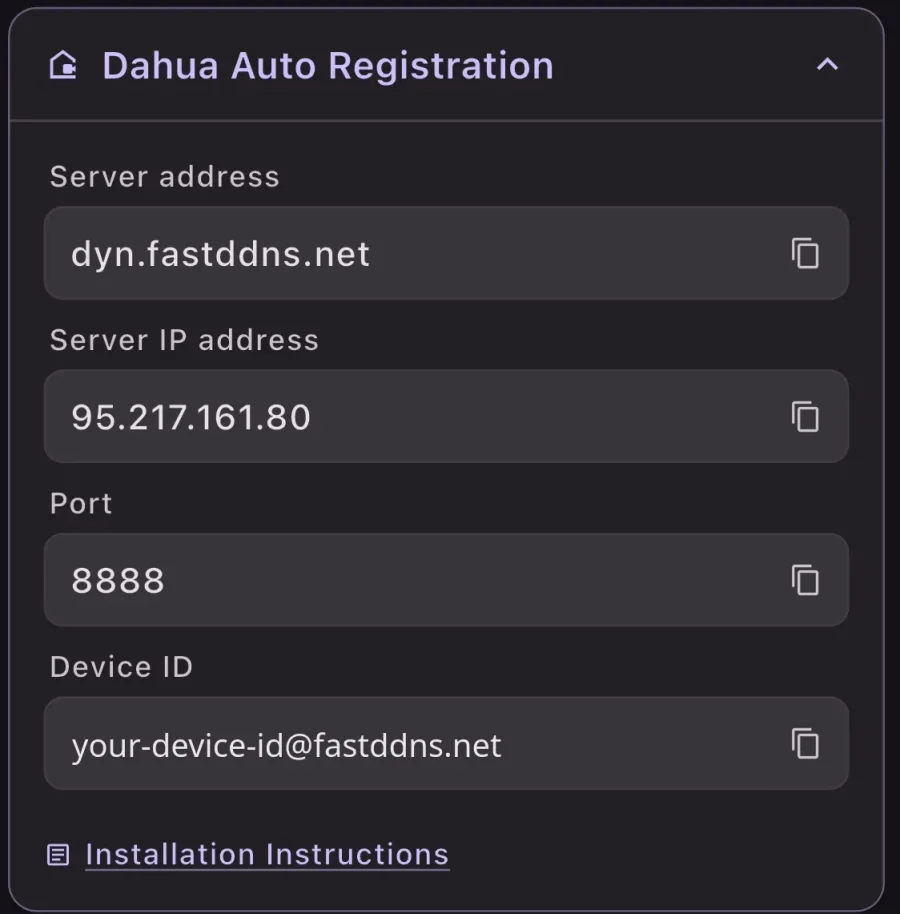
Open the hostname and expand Dahua Auto Registration. The website shows the server as an IP address; the app shows a hostname as well. Either works — the name resolves to the same server, and it keeps working if the address ever changes, so prefer the name when your firmware accepts one.
Step 2 — Open the Register screen
Type the device's local address into a browser on the same network and sign in:
http://192.168.1.108If you do not know that address, the FastDDNS app has a LAN scan that lists what is on the network. Then go to Setup > Network > Register.
Step 3 — Fill in the fields and save
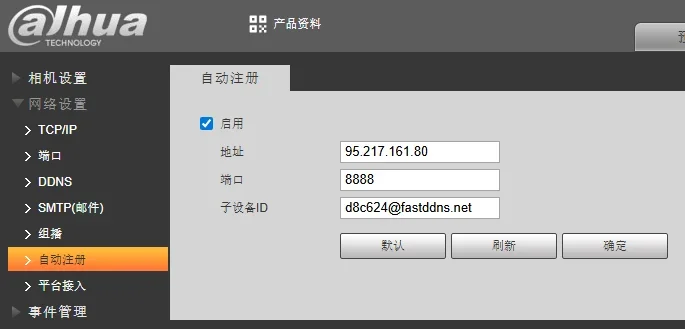
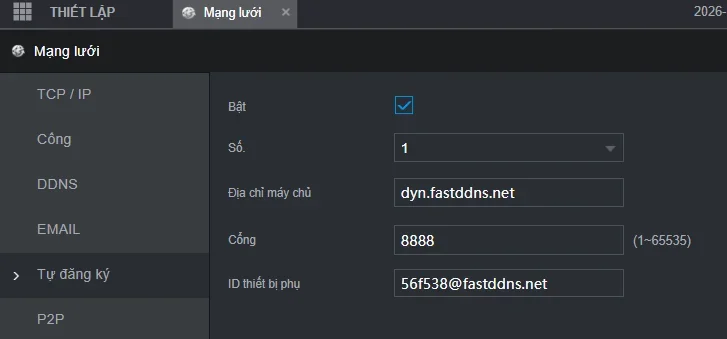
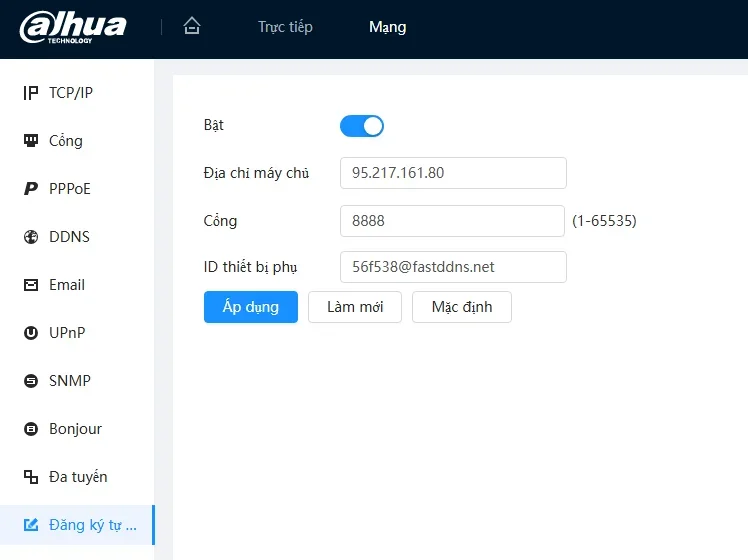
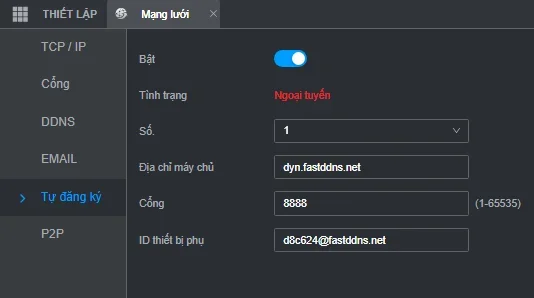
- Enable — tick it. This is the field people miss.
- Host IP (also labelled Server address or Địa chỉ máy chủ) — the server from the panel.
- Port — 8888.
- Sub-Device ID (also Device ID) — paste it from the panel; do not retype it.
Press OK or Apply. If nothing has happened a few minutes later, reboot the device once before you change anything else — it costs nothing and rules out settings that were accepted but never applied.
Step 4 — Check that the hostname moved
Go back to the hostname page. Within a minute or two of the device's first report, the address under the name becomes your public IP and Last Updated moves to the current time. The Updates from device box on the same page lists each report with the status the server returned, and it is the first place to look if the address does not change.
From a computer outside your network, the name should resolve to the same address:
nslookup myhome.fastddns.org 1.1.1.1You still have to forward a port to watch the camera
Auto Register keeps the name correct. It does not make the recorder reachable. To actually connect from outside, forward the port your viewing app uses — commonly 37777 for Dahua clients, 554 for RTSP, and 80 or a custom port for the web interface — to the recorder's local address on your router, and give that recorder a fixed local address so the rule keeps pointing at it. The note on DDNS and port forwarding covers why this stays a separate job. Once the rule is in, the port checker tells you from outside whether it works.
Note that FastDDNS issues the hostname, not a TLS certificate, so HTTPS on the device is yours to arrange.
Troubleshooting
| What you see | What to do |
|---|---|
| Hostname never takes an IP, update log empty | Re-open Register and check the settings actually saved and that Enable is still ticked, then reboot the device once. |
| Settings saved, still nothing | Re-paste the Device ID. A truncated or hand-typed ID matches no hostname, and the server has nothing to log against. |
| ID is right, log still empty | The device may not be getting out at all. Check that it has a working gateway and DNS, and that nothing on the network blocks outbound connections on 8888 — some business firewalls and guest networks allow only the common ports outward. |
| The log shows abuse | On this path that is usually an expired hostname: the record is removed rather than updated. Renew it, or move it to a plan that does not expire. |
| Hostname is correct, camera still unreachable | Not a DDNS problem. The port is not forwarded, or a second router in front of the first is swallowing the rule. |
| The screen looks different from the screenshots | Expected — see the gallery below. The section may be called Auto Register, Tự đăng ký or 自动注册, and the host field may want a name instead of an IP. The three values are the same. |
The same screen on other firmware
Dahua ships this page in several layouts and languages, and the screenshots below come from different devices rather than one model. Match the shape of the screen rather than the exact wording — all of them are the same three fields.
Frequently Asked Questions
Do I need to forward port 8888 on my router?
No. Port 8888 is on the FastDDNS server, and the device connects out to it. Home routers allow outbound connections by default, so there is nothing to configure. The ports you do have to forward are the ones you watch the camera on, and that is a separate job.
Is Auto Register on every Dahua device?
No. It is not universal. If there is no Register entry under the network settings, look for a DDNS section instead — and if there is neither, the device can still be covered by a computer on the same connection running an update client.
Can two devices share one Device ID?
They should not. The Device ID belongs to one hostname, and both devices would be reporting the same public address to the same name — which is pointless, since everything behind your router already shares that address. Give each device a different forwarded port instead of a second hostname.
What happens while the device is switched off?
The hostname keeps whatever address it last reported. If your public IP changes during that time, the name points at the wrong address until the device comes back and reports again — that is the nature of any method where the device itself does the reporting. One thing that does not wait for the device: a hostname that reaches its expiry date has its record removed regardless, so keep an eye on the expiry shown on the hostname page.