What the email method does on a Xiongmai recorder
Fill the recorder's email settings with the SMTP values on your FastDDNS hostname page — mail.fastddns.net, port 2626, no SSL, and the sender address the panel generated for that hostname — then switch on an alarm with Send Email ticked. Every alarm mail the recorder sends updates the hostname to the public IP the mail came from, and the recorder's own DNS settings are never touched.
Two things this does not do. It does not open the recorder to the internet — port 34567 still has to be forwarded on your router, and nothing works at all if your provider puts you behind CGNAT. And it only moves the hostname when an alarm actually fires, which is the trade you accept for leaving the DNS alone.
When to use this instead of changing the recorder's DNS
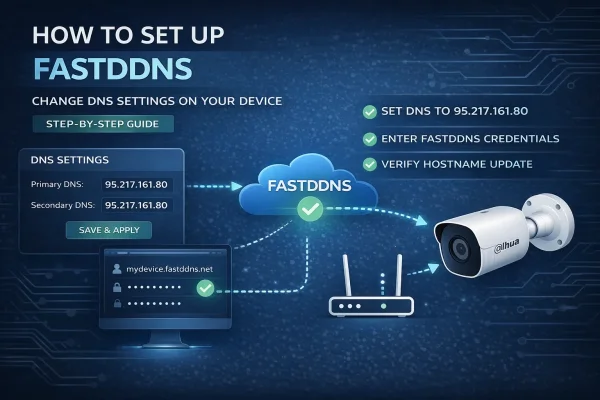
A Xiongmai recorder can reach FastDDNS two ways, and your hostname page shows both under the same card. The DNS-change method points the recorder at a FastDDNS DNS server so its built-in NO-IP client lands here instead. It updates on a timer, whether or not anything happens in front of the camera — but that DNS server answers outside names with its own address, so clock sync, the XMEye P2P cloud and any alarm mail you wanted sent to your own inbox can stop working.
The email method is the opposite trade.
| DNS change (Method 1) | Email alerts (Method 2) | |
|---|---|---|
| Recorder's DNS servers | Replaced | Untouched |
| NTP clock, P2P cloud, your own mail alerts | May stop working | Keep working |
| What triggers an update | The recorder's own DDNS timer | An alarm that sends mail |
| Uses the DDNS menu | Yes — Network > DDNS | No — works on firmware with no usable DDNS list |
| Weak point | Everything the recorder has to look up by name | Quiet cameras: no alarm, no update |
If the recorder guards a door, a gate or a corridor that sees movement every day, the email method is the safer of the two. If it watches a storeroom that nothing enters for weeks, read the last section before you commit to it.
How the update actually happens
Worth thirty seconds, because it tells you where to look when it breaks. When the recorder sends an alarm mail it opens a normal SMTP connection to FastDDNS's mail server. The server keeps two things from that connection: the sender address in the envelope, and the IP address the connection came from. A background worker picks the pair up seconds later, looks up which hostname owns that sender address, and writes the IP into DNS.
Three consequences follow, and each one saves you an hour later:
- The address recorded is the public IP of the line the recorder sits on. That is exactly what you want at home. It also means a recorder sending its mail through some other relay would register the relay's address instead, so leave the SMTP server set to the one on the panel.
- The sender address is the only credential on this path. No password is checked when an update arrives by mail — the address itself is the key. Treat it like a password: keep it out of forum threads and blank it out of any screenshot you share. When you do need help, quote the hostname rather than the sender address. Each hostname gets its own, so it identifies exactly one name.
- Port 2626 is the one to use. The mail server also listens on 25 and 26, and old screenshots of this panel show 25. All three still work, but plenty of home ISPs block outbound 25 to stop spam, and a blocked port looks exactly like a wrong password from inside the recorder. Take the value from the panel.
Before you start
Check that you have a real public IP
Open the WAN status page on your router and read the address it received. If it starts with 10., 172.16–31., 192.168. or falls inside 100.64.0.0/10, your provider is sharing one address between many customers and no DDNS service can open a way in — the answer on FastDDNS and CGNAT covers what is left to try. The FastDDNS mobile app has a CGNAT checker if you would rather not read the router page.
Know what this guide was checked against
The panel values below were read from a live hostname page on 2026-09-03, and the panel is always right for your account — if it disagrees with this page, follow the panel. The recorder screenshots come from the classic Xiongmai menu shipped on the port-34567 family that XMEye, vMEyeSuper and GoodEye talk to. Field names move between builds: some firmware calls the section Net Service and some NetService, and the mail entry may sit under Advanced instead. What matters is that the recorder has an EMAIL profile and an alarm that can tick Send Email; if yours has neither, skip to the last section.
Create the hostname and copy its SMTP values
Sign in at FastDDNS and create a hostname — at least six letters or digits, plus one of the offered domains such as fastddns.org. Open it, scroll to DDNS Configuration Parameters, click the card named PORT 34567 (XMEYE, VMEYESUPER, GoodEye) and open Method 2: Use email alerts (SMTP).
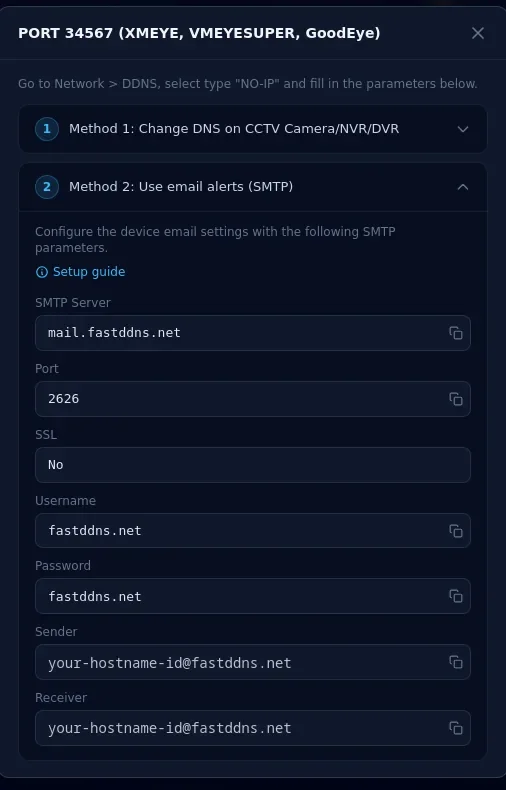
Copy the values as the panel shows them. SMTP Server, Username and Password are the same for everyone. The address in Sender and Receiver is yours alone: it is the sender that tells the update server which hostname the mail belongs to, and the panel fills the receiver with the same address so the message has somewhere valid to go.
Step 1 — Turn on an alarm that sends email
The recorder only mails when something makes it mail, so this step comes first. On most Xiongmai firmware the alarm lives under Setting > Alarm > Video Motion.
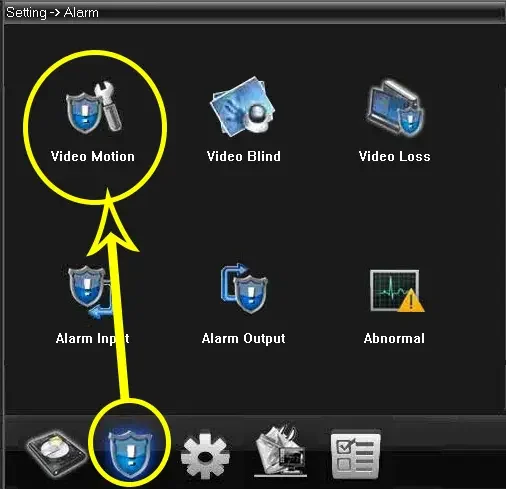
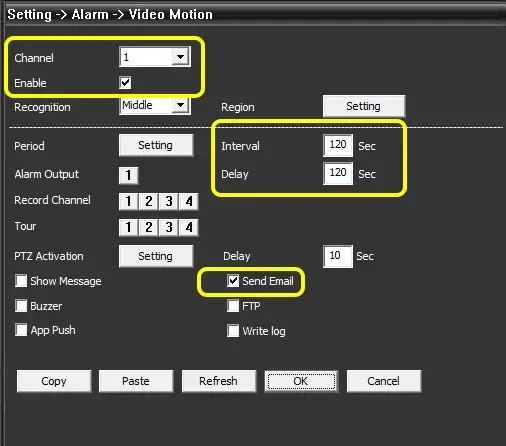
Open it and set the fields that decide whether a mail is sent at all:
- Channel: the camera that sees regular movement.
- Enable: ticked.
- Interval and Delay: 120 seconds each, the values in the screenshot below. They are the alarm's own timing fields — exactly what each one counts varies by firmware, but together they decide how soon after one alarm the next can be raised, and therefore how often this recorder can report a new IP.
- Send Email: ticked. Without this the alarm fires and nothing leaves the recorder.
- Press OK to save.
Sending mail every two minutes sounds like a lot of updates for one IP address, and it is not. When a report carries an address the hostname already has, the server answers "no change" and remembers that pair for five minutes, so the mails that arrive inside that window do not turn into DNS updates at all.
Step 2 — Fill in the email settings
The mail account itself lives under Setting > System > Net Service, in the EMAIL entry of the list.
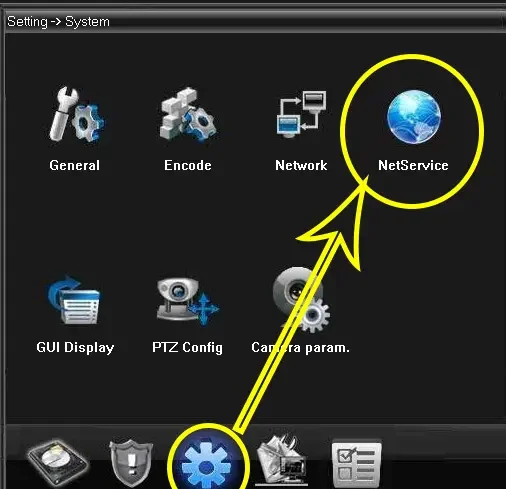
Select EMAIL, tick Enable, and fill it in from the panel:
| Field on the recorder | What to enter |
|---|---|
| SMTP Server | mail.fastddns.net |
| Port | 2626 |
| Need SSL | NONE — leave it off |
| User Name | the username on the panel, the same for every account |
| Password | the password on the panel — not your account password |
| Sender | the address the panel generated for this hostname |
| Receiver | the same address again |
| Title | anything, for example Alarm Message |
Two fields go wrong more often than the rest. Leave SSL off — the parameters the panel hands you are for a plain connection, so NONE is the setting that matches them. And do not replace the sender or the receiver with your own mail address: the update server only accepts addresses on FastDDNS's own domains and refuses anything else during the SMTP conversation, so a Gmail address in either field means no update ever arrives.
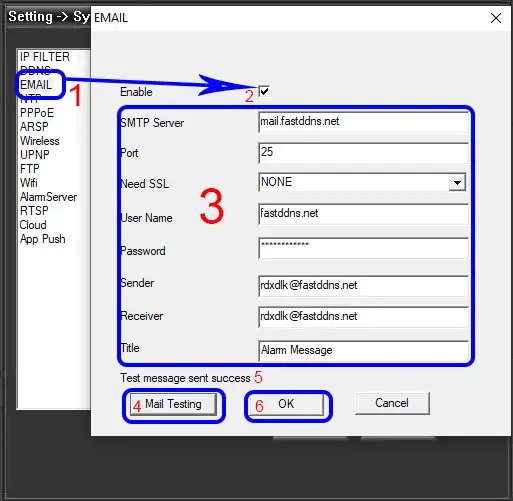
Then press Mail Testing. The status line under the form should read Test message send success. The test message is an ordinary mail carrying the same addresses as an alarm mail, and the update server treats every message it accepts the same way — so once a test message actually reaches the server it counts as an update, which makes this the fastest way to move the hostname without waiting for someone to walk past the camera. The recorder's own success line only tells you it thinks it sent something, so confirm it on the hostname page rather than here. Press OK to save.
The walkthrough below covers the same two steps on a live recorder.
Step 3 — Check that the hostname moved
The hostname page should show your current IP
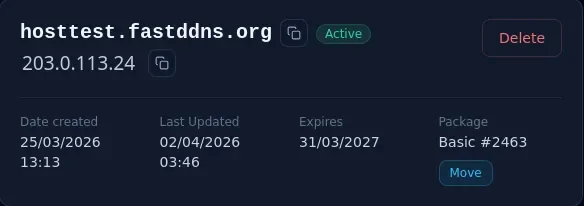
Go back to the hostname in your FastDDNS account. Once the mail reaches the server the hostname is updated in well under a minute; what you cannot time is the delivery itself, so give it a couple of minutes and refresh. When it lands, the address under the name changes to your public IP and Last Updated moves to the current time.
Read the update log
The Updates from device box on the same page lists each update with the status the server returned. Mail-driven updates are logged exactly like any other, so this is the same place you look no matter which method you used — the table further down says what each status means. What the log does not record is how the update arrived. And a log with nothing new in it does not always mean nothing arrived: a sender address the server cannot match to any hostname at all is dropped without a line being written, which looks identical to no mail at all.
Resolve the hostname from outside your network
From any computer that is not behind your router, ask a public resolver for the name:
nslookup myhome.fastddns.org 1.1.1.1The answer should match the address the panel shows. If they disagree, the last mail has not been processed yet, or it never left the recorder.
Forward port 34567, then test it
A working hostname does not open anything. The recorder stays unreachable until you forward 34567 to it on the router, plus 80 if you also want the web interface — the note on DDNS and port forwarding explains why. Point the rule at the recorder's LAN address, and reserve that address for it on the router so the rule does not start pointing at a different machine. Then check it from outside with the port checker, which has a preset for XM 34567.
One thing a hostname does not give you is encryption. FastDDNS issues the name, not a TLS certificate, so opening the recorder on port 80 in a browser is plain HTTP and anything you type there travels in the clear.
Troubleshooting — what the update log says
Every line in Updates from device carries a status code. They are the standard DynDNS protocol replies, and on this path each one points at a different mistake.
| Status | What the panel shows, and what to do |
|---|---|
| good | Update new IP Nothing — the mail arrived and the hostname now points at that address. |
| nochg | No IP change Nothing. The address was already correct, or the same address was reported again within five minutes. |
| nohost | This hostname does not exist The sender address does not match any hostname. Re-copy it from the panel — a truncated or edited address lands here. |
| badauth | The account name or password you entered is incorrect The server found the hostname but would not accept the account name attached to it. Nothing on the recorder causes this and nothing on the recorder fixes it — send the hostname to support. |
| abuse | This hostname has been blocked due to abuse On this path the usual cause is an expired hostname: the record is removed rather than updated. Renew it, or move it to a plan that does not expire. If the hostname is current, contact support. |
| 911 | The update server is temporarily unavailable Something failed on the server side rather than on your recorder. One or two lines are normal — let the next alarm mail retry. If every mail comes back with it, the failure is not temporary; contact support with the hostname. |
The harder case is a log with no new line at all. That means no update was recorded — either the mail never reached the server, or it arrived with a sender the server could not match to any hostname, which is dropped silently. Work through these in order:
- Mail Testing fails on the recorder. The recorder cannot reach the mail server. Check that it has a working gateway and DNS, that Need SSL is off, and that the port is 2626 rather than a 25 your provider blocks.
- Mail Testing succeeds but nothing appears. Check the sender first: it has to be exactly the address from your own hostname page, because that is what the server matches against, and one edited or truncated character makes it match nothing. The receiver must also stay on a FastDDNS domain, so leave it as the panel filled it. If the addresses are right, the recorder may be reporting success without the message having been accepted — try the other port from the panel, and check the log again after the next alarm rather than after the test.
- Mail only when you press the test button. The alarm is not firing. Go back to Video Motion and confirm the channel, Enable and Send Email are all set on the camera you expect movement on.
- Everything is green but the camera is still unreachable. That is not DDNS. The name is correct and port 34567 is not open — go back to the forwarding step.
Keeping the hostname current when nothing moves
This method's honest weakness: the hostname is only as fresh as the last alarm mail. If the camera sees nothing for a fortnight and your provider changes your IP in the meantime, the name keeps pointing at an address that is no longer yours until the next alarm. Three ways around it, in the order most people should try them:
- Give the recorder a reason to mail. Point the motion alarm at a channel that sees daily movement, or enable a second alarm type that also sends mail. This does not make the hostname instant — it bounds how long a stale address can survive to roughly the gap between mails.
- Let a PC do the reporting. An always-on Windows machine on the same connection can send updates on a fixed schedule regardless of what the cameras see — see the Windows DDNS client guide.
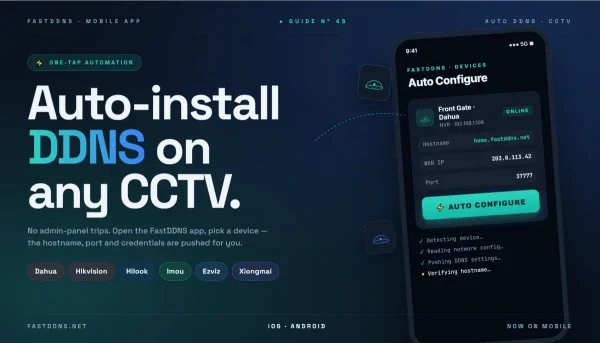
- Switch to the timer. If nothing on the recorder needs to resolve outside names, the DNS-change method updates on its own schedule and does not care whether anything moves. The hostname page also offers guided setup through the FastDDNS mobile app for the CCTV brands it lists, Xiongmai among them.
Frequently Asked Questions
Do I have to change the recorder's DNS for this method?
No. That is the whole point of it. The recorder keeps whatever DNS servers it already has, so clock sync, the XMEye P2P cloud and any other service that resolves names keep working. Only the email settings change.
Can I send the alarm mails to my own inbox as well?
Not through this account. The sender has to stay the address on your hostname page, because that is what identifies the hostname to the update server, and the receiver has to stay on a FastDDNS domain for the message to be accepted at all — so neither field can be pointed at your own mailbox. If you want alarm mails in your inbox as well, you need a recorder that supports a second mail profile.
How quickly does the hostname update after an alarm?
Once the mail reaches the update server the hostname changes in well under a minute. The delay you actually feel is everything before that: the recorder has to raise an alarm first, and its Interval and Delay values decide how soon after one alarm it will raise the next.
Is it safe to share a screenshot of my email settings?
Blank out the sender address first. No password is checked when an update arrives by mail, so anyone who can send a message from that address can point your hostname wherever they like. The server, the port and the shared username are harmless; the sender address is not.