What automatic DDNS setup does
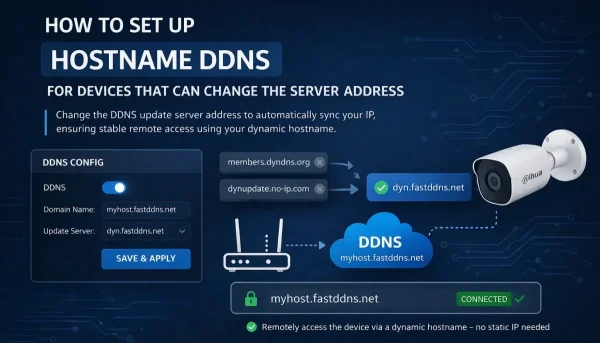
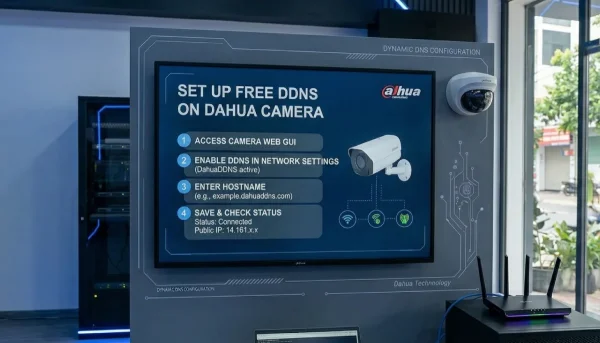
Open your hostname in the FastDDNS mobile app, tap Auto Setup for CCTV Camera, give it the camera's LAN address and login, and the app writes the DDNS settings into the device for you. It finds the recorder, works out which protocol it speaks, signs in, and fills in the fields you would otherwise have typed on the device's own menu — then shows you each step and whether it succeeded.
It is a shortcut for the configuration, not for the network. You still have to forward the ports you want to reach from outside, and none of it helps if your provider puts you behind CGNAT.
What it can configure
The brand picker in the app lists seven brands plus Other. Behind those seven there are only four device protocols, which is why devices sold under other names often work too — what matters is the protocol, not the badge.
| Brand in the app | Default port it tries | Protocol used |
|---|---|---|
| Hikvision, EZVIZ, HiLook | 8000 | Hikvision HTTP (ISAPI) |
| Dahua, IMOU | 37777 | Dahua |
| XMEye (Xiongmai) | 34567 | Xiongmai DVRIP |
| Tiandy | 3001 | Tiandy discovery (UDP) |
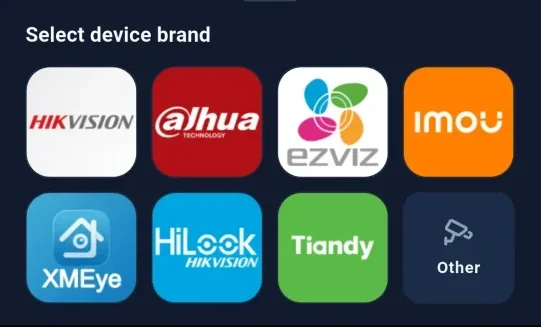
Picking a brand normally narrows the search to that one protocol; when the app cannot narrow it, it falls back to trying all four. Choosing Other asks for that fallback on purpose, so an unbranded recorder that happens to speak Dahua or Xiongmai is still recognised. If none of them answer, the device is not one this feature can drive — configure it by hand instead, and the guide to changing the DDNS server address covers the manual route for devices that let you type a custom server.
What the app actually changes on the device
This is the part worth reading before you run it, because the app is signing in to your recorder and editing its settings. The steps differ by protocol, and the app names each one on screen as it runs:
- Check port — confirms something is listening on the address and port you gave it.
- Detecting brand — probes until a protocol answers, then says which one it found.
- Login to device — signs in with the username and password you entered.
- Set DNS — points the recorder's DNS servers at FastDDNS, which is what makes a locked provider list update here.
- Set DDNS — fills in the recorder's own DDNS entry: hostname, username and the hostname's password.
- FakeCloud — Dahua and Xiongmai only, and not always applied; it redirects the device's cloud lookup and needs a reboot to take effect.
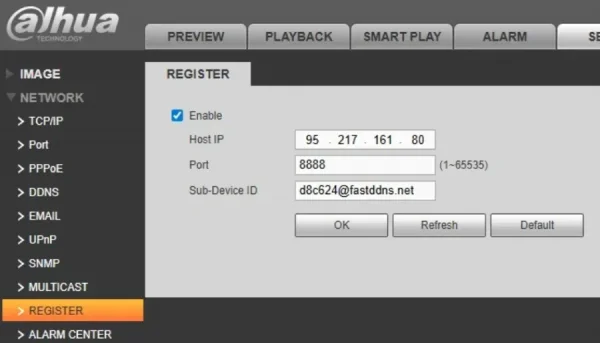
- Auto Register — Dahua only; the device opens an outbound connection to the registration server instead of waiting to be reached.
- Set EMAIL alerts — configures the recorder's mail settings so an alarm mail also reports the IP.
- Set motion detection — turns on the alarm that sends those mails.
Hikvision-family devices get the shorter list: DNS, DDNS and mail, with no FakeCloud or Auto Register step at all.
A step marked Skipped is not a failure — it means the app did not apply that step on this device.
Before you start
Be on the same network as the camera
The app talks to the recorder directly over the local network, so the phone has to be on the same LAN — the Wi-Fi in the building, not mobile data. You also need the recorder's LAN address and port. If you do not know them, the FastDDNS app has a built-in LAN scan that lists what is on the network, alongside its port check and WAN IP tools.
Have the device login ready
The app signs in as you would. It needs the recorder's own username and password — usually admin and whatever the installer set. A wrong password stops the run at Login to device, and no settings are changed.
Check you are not behind CGNAT
If your provider shares one public address between many customers, remote access cannot work no matter how the recorder is configured — the answer on FastDDNS and CGNAT explains why, and the app has a CGNAT checker in its network tools.
Create the hostname first
Sign in at FastDDNS or in the app and create a hostname — at least six letters or digits plus one of the offered domains. The setup writes that name into the device, so it has to exist first.
Step 1 — Open the hostname in the app
Open the hostname you want the camera to use. Under DDNS Configuration the first item is the Auto Setup for CCTV Camera button; the cards below it are the same manual parameter blocks the website shows.
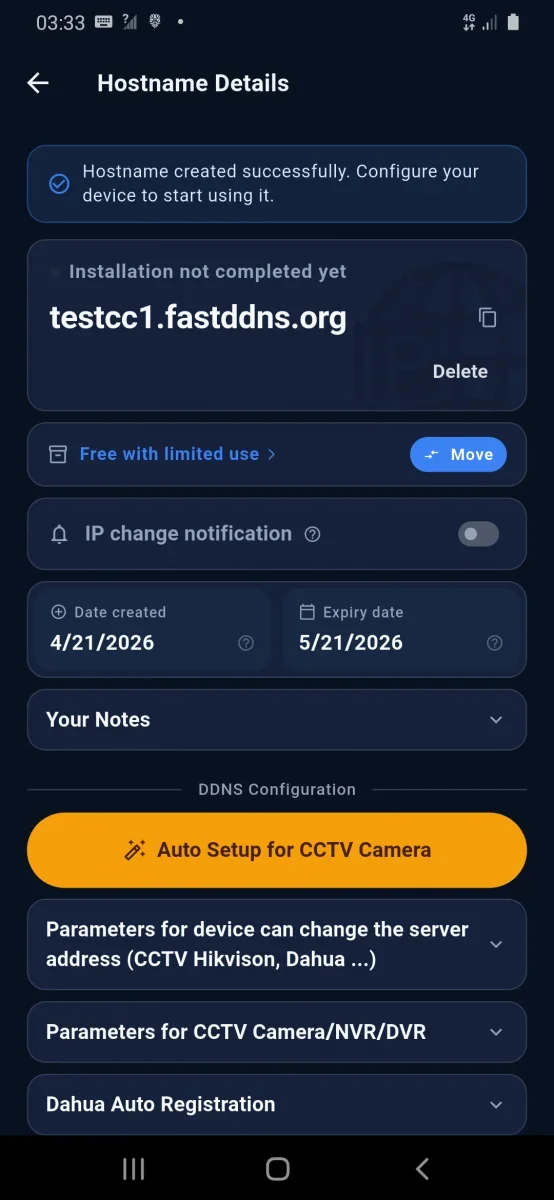
This feature is only in the mobile app. On the website the same button opens a note telling you to install the app, sign in with the same account and open the hostname there — the website cannot reach a camera on your home network.
Step 2 — Pick the brand and enter the device details
Choose the brand, or Other if you are not sure. Then give the app the recorder's LAN address, its port and its login. The defaults in the table above are filled in for you when you pick a brand, so in most cases only the address and the password need typing.
Step 3 — Run it and read the list
Tap Start Setup. Each step turns into a line with its own result, and the run ends with Setup steps completed.
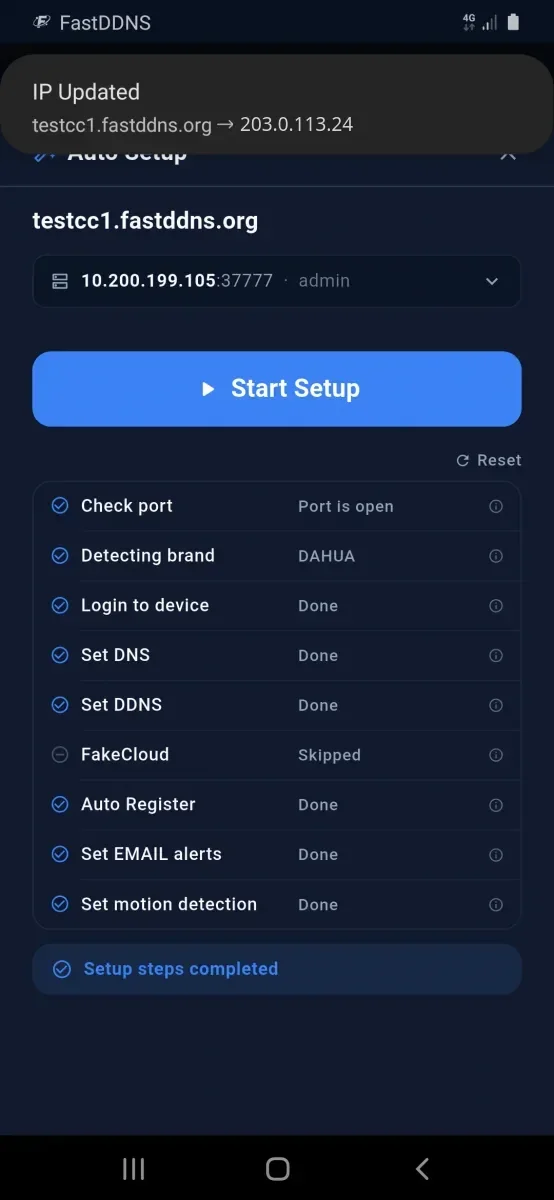
The notification at the top of that screen is the point of the whole exercise: the recorder reported in and the hostname now carries your public address. You can confirm the same thing on the hostname page, where the address and Last Updated change, and in the Updates from device log below it.
When a step fails
| Step that stops | What it usually means |
|---|---|
| Check port | Wrong LAN address or wrong port, or the phone is on a different network from the camera. Run the app's LAN scan and use what it finds. |
| Detecting brand | Something is listening, but it does not speak any of the four protocols. This device needs manual setup. |
| Login to device | Wrong username or password, or an account without permission to sign in over the network. Use the recorder's administrator account. |
| Set DNS or Set DDNS | The account you logged in with is not allowed to change settings. Use the administrator account rather than a viewer account. |
| Everything done, no IP on the hostname page | The device saved the settings but has not reported yet. Give it a few minutes, then read the update log on the hostname page for the status it received. |
What it still does not do
Automatic setup configures the recorder. It does not touch your router, and that is where the remaining work is.
- Port forwarding is still yours to do. The hostname points at your address, but nothing is reachable until the port is forwarded to the recorder — the note on DDNS and port forwarding explains why. Which port depends on how you plan to watch: the ports in the table above are the ones the app uses to configure the device on your own network, and the client app on your phone may want a different one. Test whatever you forward from outside with the port checker.
- CGNAT still blocks everything. No configuration on the camera changes that.
- There is no certificate. FastDDNS issues the hostname, not a TLS certificate, so HTTPS on the recorder is yours to arrange.
- One hostname covers the whole connection. Every device behind your router shares one public address, so a second camera needs a different forwarded port, not a second hostname — extra hostnames for one address waste the quota on your plan.
Frequently Asked Questions
Can I run automatic setup from the website instead of the app?
No. The setup talks to the camera over your local network, and a web page open on a laptop somewhere else cannot do that. The website's button explains this and points you to the app; the manual parameter cards on the same page are the alternative if you would rather type the values in yourself.
My camera brand is not in the list. Is it unsupported?
Not necessarily. Pick Other and the app tries all four protocols it knows. Many recorders sold under local brand names are built on Dahua, Hikvision or Xiongmai firmware and answer one of them. If none do, the device can still use FastDDNS as long as its firmware lets you change the DDNS server address or the DNS servers — you fill that in by hand.
Why does the setup change my recorder's DNS servers?
Because CCTV firmware usually ships a fixed list of DDNS providers and will not let you add one. Pointing the recorder's DNS at FastDDNS makes a provider it already offers resolve here instead. The hostname page carries the warning that comes with it: changing the DNS may disable network features on the device such as NTP clock sync, its own email alerts and P2P cloud access. Set that DNS on the recorder only — never on a PC, and never as the DNS your router hands out.
Do I have to run it again if my IP changes?
No. Setup is a one-off: from then on the recorder reports in by itself, which is the whole point of DDNS. Run it again only after a factory reset, or if you move the camera to a different hostname. If the hostname does stop following your IP, check the update log on the hostname page before re-running anything.