What this method does, and what it costs you
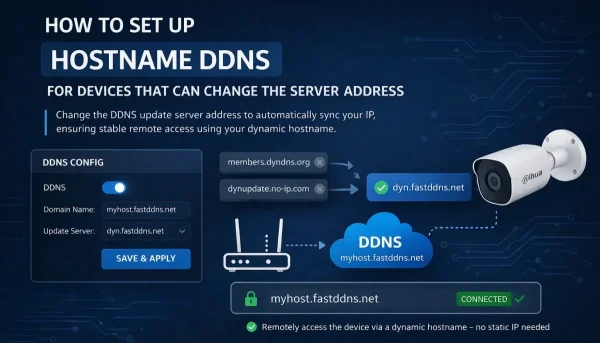
Point your device's DNS servers at 95.217.161.80, then fill in its own DDNS menu with NO-IP or DynDNS as the provider and your FastDDNS hostname, username and hostname password. The device's built-in DDNS client then reaches FastDDNS instead of the provider printed in its menu, and your hostname follows your public IP from then on.
It is the fallback when nothing else fits, because it asks little of the firmware: an editable DNS field, and a DDNS menu offering NO-IP or DynDNS. Whether a given build has both is something only its own menus can tell you. And changing the DNS has a price, which you should know before you start.
Read this before you change the DNS
The FastDDNS DNS server answers outside names with its own address. That is exactly what makes a locked provider list land here — and it is also what breaks other things on the device that need to look a name up. The hostname panel carries the warning in the product itself: changing the DNS may disable network features on the device, including clock sync over NTP, the device's own email alerts, and the manufacturer's P2P cloud apps such as DMSS, Hik-Connect or EZVIZ.
Two rules follow from that:
- Set this DNS on the device only. Never on a PC or a phone, and never as the DNS your router hands out to the whole network.
- If you need the cloud app or the clock, pick another method. Devices that let you type a custom DDNS server can use the server-address method, which leaves the DNS alone. A PC on the same connection can report instead, using the Windows client. Some recorders can report through their mail settings, described in the email alert guide.
Before you start
- A hostname on FastDDNS. Creating one takes a minute, and the values you need are on its page.
- Access to the device's web interface from a computer on the same network, plus its admin login.
- A real public IP. Behind CGNAT, no DDNS service can open a way in — the answer on FastDDNS and CGNAT covers what is left to try.
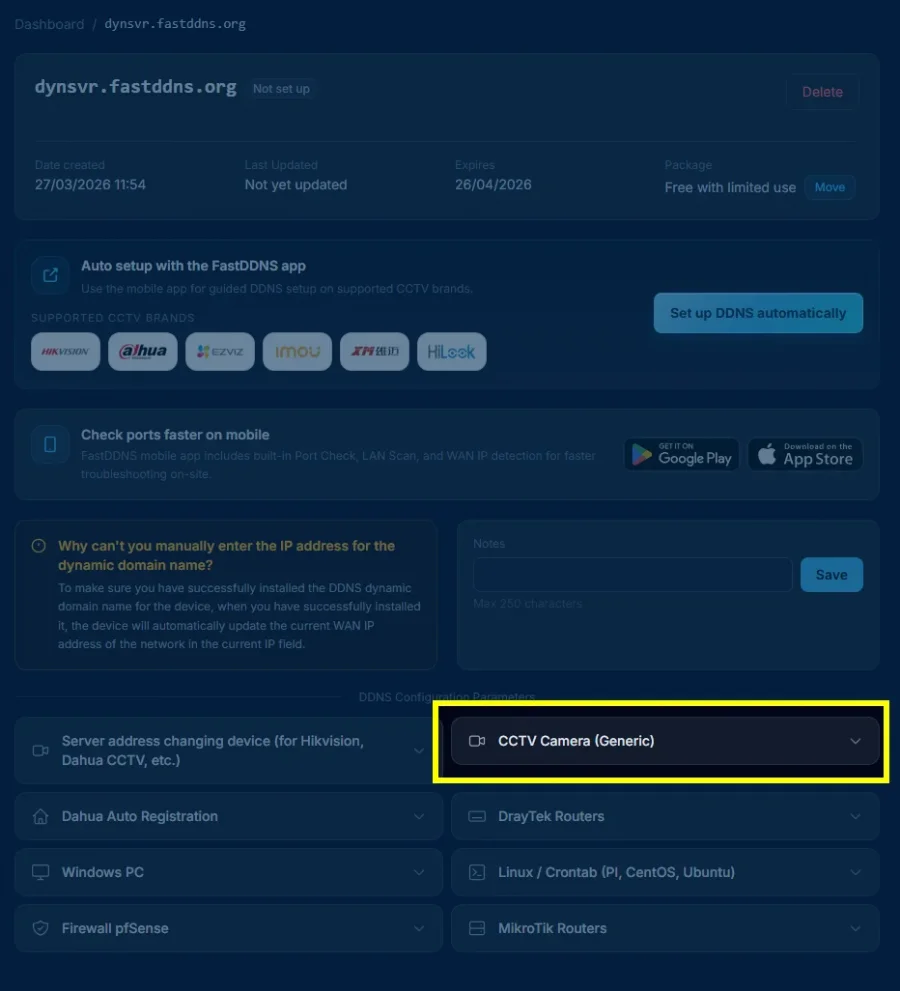
Step 1 — Change the DNS on the device
Open the device's web interface and find its network page. The DNS fields sit under Network or TCP/IP, usually labelled Preferred DNS and Alternate DNS, or Primary DNS and Secondary DNS. Put the same FastDDNS address in both.
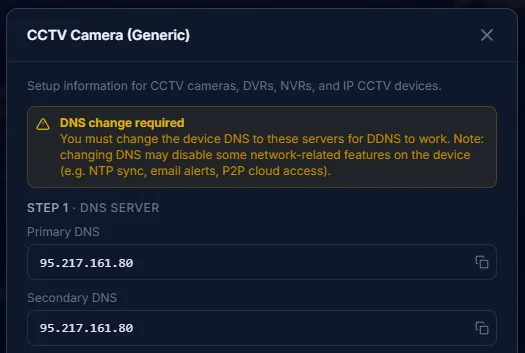
The addresses shown on your hostname page are the ones to use. Two details catch people out here:
- If the DNS fields are greyed out, it is usually because DHCP is enabled — turning it off makes them editable. Write down the address, subnet mask and gateway the device is currently showing before you do, and type the same values straight back in, or the device drops off the network. If that does happen, the settings are still reachable from the recorder's own on-screen menu, or by resetting the network settings from the device's front panel.
- Reserve that address for the device on your router afterwards. It keeps the port-forwarding rule you add later pointing at the right machine.
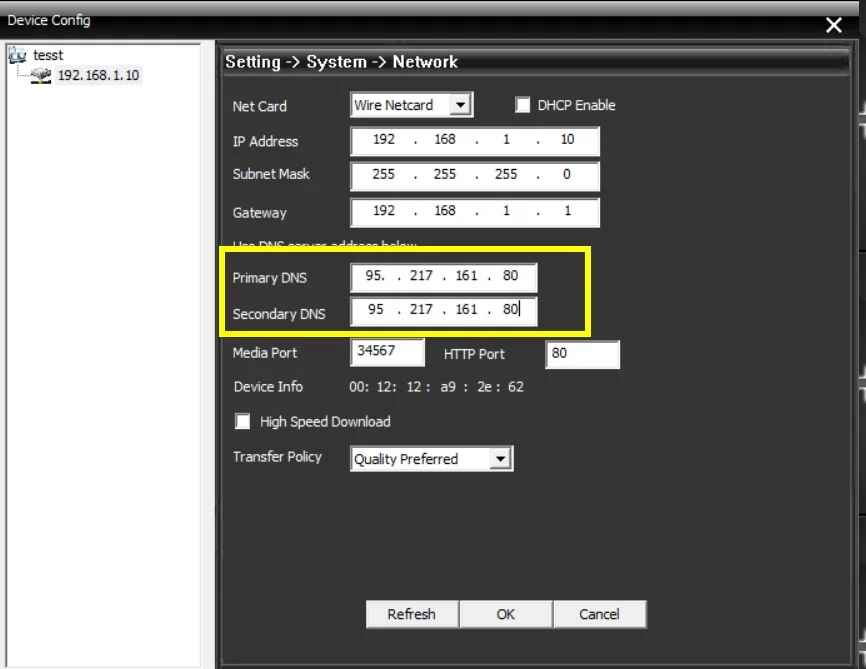
Where the menu lives varies by brand and by firmware build. As a starting point, look under Setup > Network > TCP/IP on Dahua, Configuration > Network > Basic Settings > TCP/IP on Hikvision and System > Network > TCP/IP on Xiongmai — but what you are hunting for is simply the page with the two DNS fields on it, wherever your build puts it. Save, and reboot if the device asks.
Step 2 — Fill in the DDNS menu
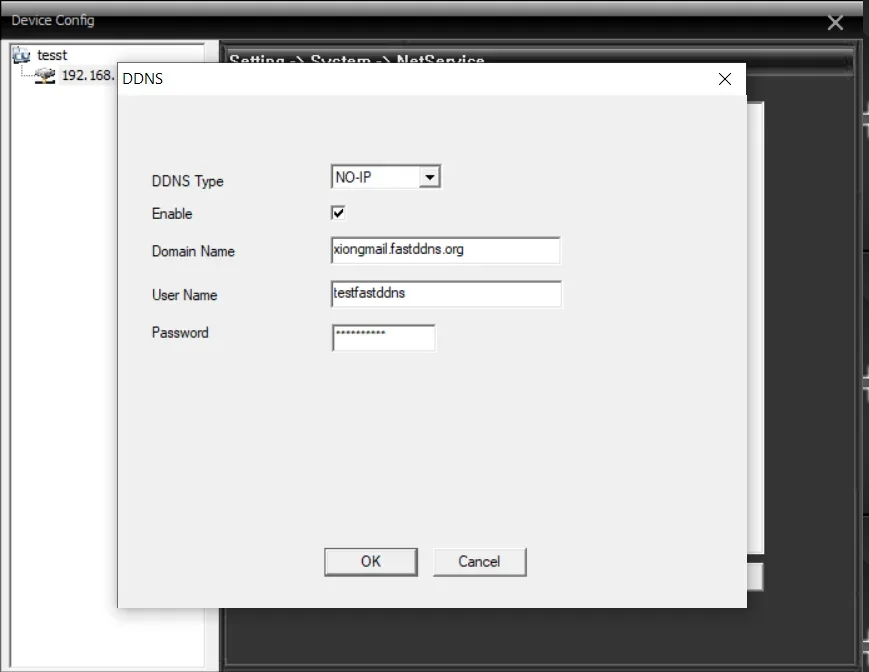
Now open the device's own DDNS section, usually under Network > DDNS or Network > Advanced > DDNS, and set:
| Field on the device | What to enter |
|---|---|
| Enable | Ticked |
| DDNS Type / Provider | NO-IP, or DynDNS if that is all the firmware offers |
| Server Address | Leave the default. If the field is editable, dyn.fastddns.net also works |
| Domain / Hostname | Your full hostname, for example myhome.fastddns.org |
| User Name | The username shown on the hostname page |
| Password | The hostname's own password from the panel — a short code, not the password you sign in to the website with |
That last row is the single most common mistake. The password on the panel belongs to the hostname; the account password will be refused by the update server, and the device will report an authentication error without saying why.
Step 3 — Check that the hostname moved
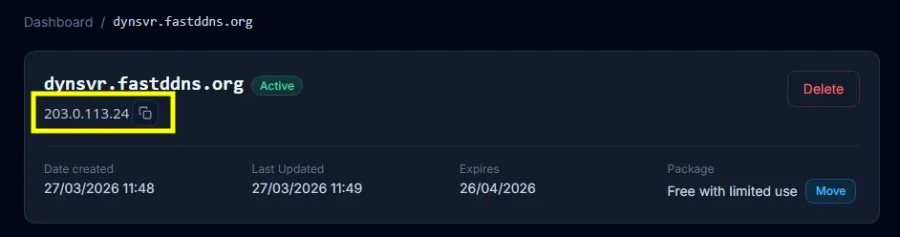
Go back to the hostname page and wait. When the device's first report arrives, the address under the name changes to your public IP and Last Updated moves to the current time — the server side of that takes under a minute. When the device sends is up to its firmware, so give it a few minutes before deciding something is wrong.
The Updates from device box on the same page lists what the device actually sent, with the status the update server returned. That log is the first place to look when the address does not change: an badauth line means the credentials are wrong, and no line at all means nothing reached the server.
From a computer outside your network, the name should resolve to the same address:
nslookup myhome.fastddns.org 1.1.1.1Step 4 — Forward the port you actually watch on
A working hostname does not open anything. Until you forward a port on the router to the device, there is still no way in from the internet. Which port depends on how you connect — the web interface, the manufacturer's client and an RTSP stream all use different ones. Read the actual numbers off the device's own port page rather than guessing. The table below covers only the port each manufacturer's own client normally connects on; the web interface uses whatever your device's port page says, which is not always 80. The note on DDNS and port forwarding explains why this stays a separate job. Once the rule is in, the port checker tells you from outside whether it works.
| Device family | Port its own client normally uses |
|---|---|
| Hikvision, EZVIZ, HiLook | 8000 |
| Dahua, IMOU | 37777 |
| Xiongmai recorders (XMEye, GoodEye, vMEyeSuper) | 34567 |
One thing the hostname does not include is encryption. FastDDNS issues the name, not a TLS certificate, so reaching the device's web interface over 80 is plain HTTP.
When it does not work
- The log shows badauth. Re-copy the username and the hostname's password from the panel. This is nearly always the account password being used by mistake.
- The log shows nohost. The name the device sent does not match any hostname — usually a typo. A separate notfqdn line means the domain part was left off and only the short name was sent.
- The log is empty. The device is not sending anything. Check that DDNS is enabled and that the DNS from step 1 really saved — some devices revert it on reboot. Save again and restart the device once.
- The device lost its clock or its cloud app. That is the DNS change doing what the warning said. Switch to one of the methods that leaves the DNS alone rather than undoing half the setup.
- Everything is green but the camera is unreachable. That is not DDNS. The port is not forwarded, or a second router in front of the first is swallowing the rule.
Which devices this fits
Two screens decide it, not the badge on the box: an editable DNS field, and a DDNS menu that offers NO-IP or DynDNS. With both, this method fits; with a provider list that offers neither, it does not. For step-by-step screenshots of a specific device, the setup guides cover Dahua, Xiongmai and the routers separately. If the device has a DDNS menu but no editable DNS field, the server-address method is the one to read next.
Frequently Asked Questions
Which password does the device want?
The one shown on the hostname page next to the username — a short code that belongs to that hostname. It is not your website password. Entering the account password is the most common reason a device reports an authentication failure.
Can I set this DNS on my router instead of on each device?
No. The DNS server used for this method answers outside names with its own address, so handing it to every device on the network would break normal browsing. Set it on the camera or recorder only.
Do I need a separate hostname for each camera?
No. Everything behind your router shares one public address, so one hostname covers the whole connection. Tell the devices apart by giving each a different forwarded port. Extra hostnames for one address use up the quota on your plan without gaining anything.
My device only offers DynDNS, not No-IP. Does that matter?
No. Both entries speak the same update protocol, and the DNS answer sends either of them to the same place. Pick whichever the firmware offers and fill in the same hostname, username and hostname password.