What the Windows client is for
Install the FastDDNS client on a Windows machine that stays on, sign it in with the hostname, username and hostname password from your hostname page, and it watches your public IP and reports every change. Your hostname keeps pointing at the right address without anything being configured on the router or on the camera.
That is the whole job. It does not open ports and it cannot help if your provider puts you behind CGNAT — those are separate problems, covered further down.
When a PC is the right place to run this
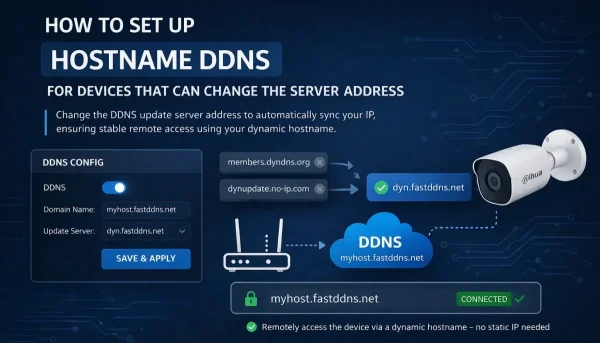
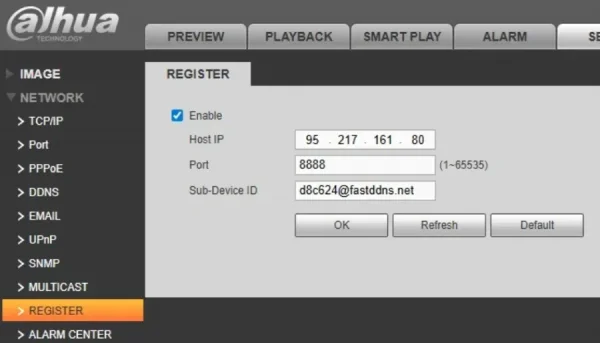
Most devices can report their own IP: routers with a DDNS page, cameras with a DDNS menu, recorders that can be pointed at a different server. Use the Windows client when none of those apply:
- The router has no DDNS section, or its provider list has nothing you can point at FastDDNS.
- The device you want to reach has no network menu worth the name — a printer, a NAS with a locked-down interface, an old recorder.
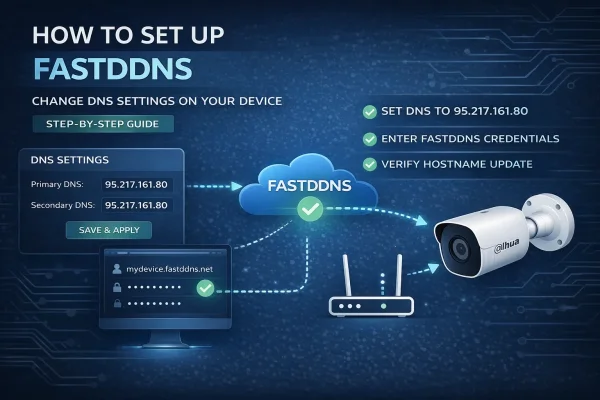
- You would rather not change the DNS settings on a camera, which is what the DNS-change method requires and what costs that camera its cloud app and clock sync.
- There is already a PC on that connection running all day, so nothing new has to be left switched on.
The catch is the mirror image of that last point: the hostname is only updated while the PC is awake and online. A machine that sleeps at night stops reporting at night. If nothing on the connection stays on, a device that reports for itself is the better choice.
Before you start
- A hostname on FastDDNS.
- A Windows PC on the same internet connection as whatever you want to reach.
- A real public IP — behind CGNAT the update will still happen, but you will not be able to connect in. The answer on FastDDNS and CGNAT explains the difference.
Step 1 — Copy the credentials
Open your hostname, scroll to DDNS Configuration Parameters and expand Windows PC.
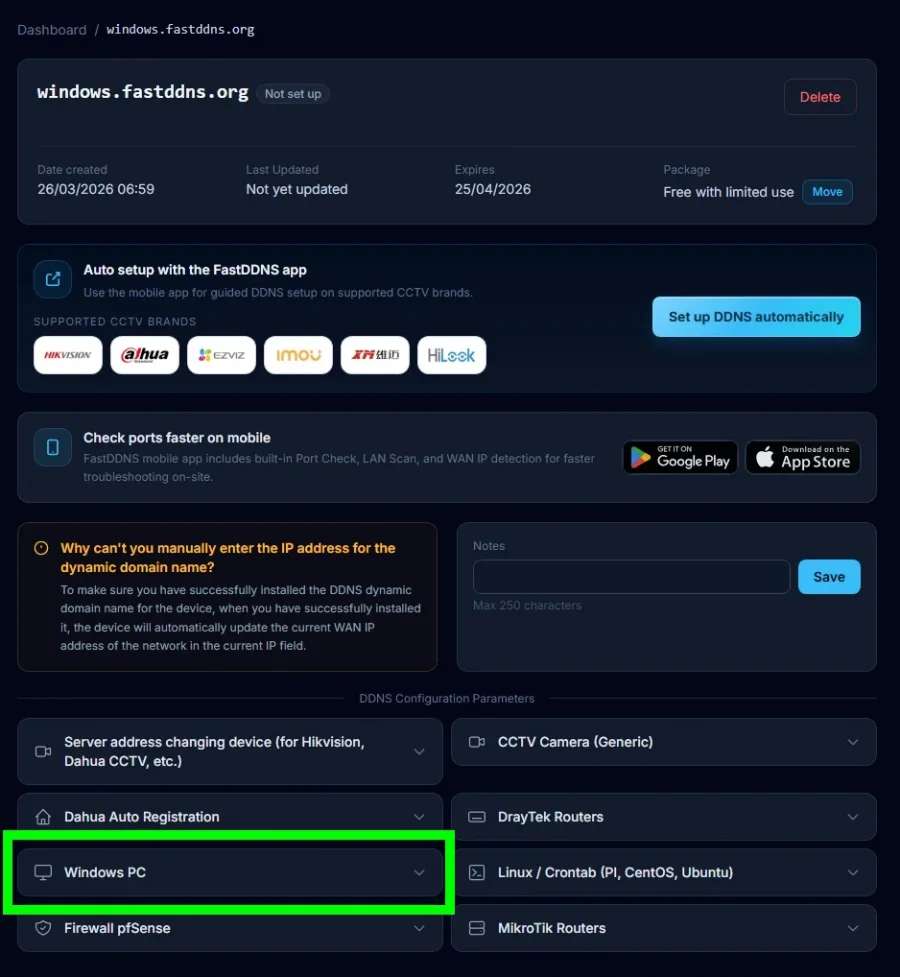
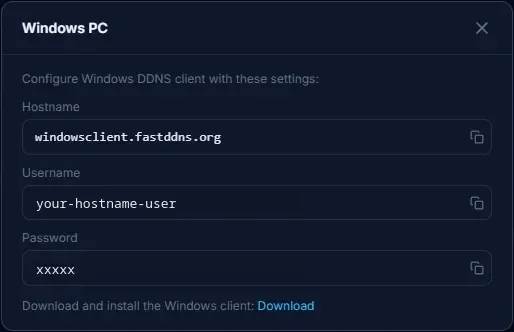
The password on this card belongs to the hostname. It is not the password you sign in to the website with, and using the account password instead is the most common reason the client reports a login failure.
Step 2 — Download and install
The download link on that card gives you FastDDNS-2.0.1-Setup.zip — a single Windows installer inside a zip, about 550 KB. You can also take it straight from assets.fastddns.net. Unzip it and run the installer.
The installer is a 32-bit Windows executable, and the client itself is a desktop program with a window rather than a background service — so plan on running it where someone can sign in and leave a session going, not on a headless server install.
Step 3 — Sign in
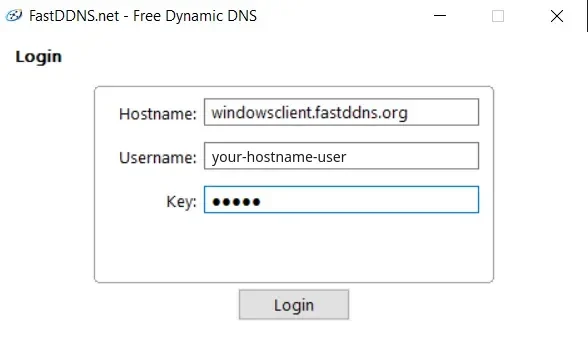
Open the client. It asks for exactly the three values from the panel: Hostname, Username and Key — the key being the hostname password.
Step 4 — Read the status window
After signing in, the client shows what it is doing: the hostname it is looking after, the address it last reported, and a countdown to the next check. Update IP forces a check immediately, which is the quickest way to confirm the setup works instead of waiting for the timer.
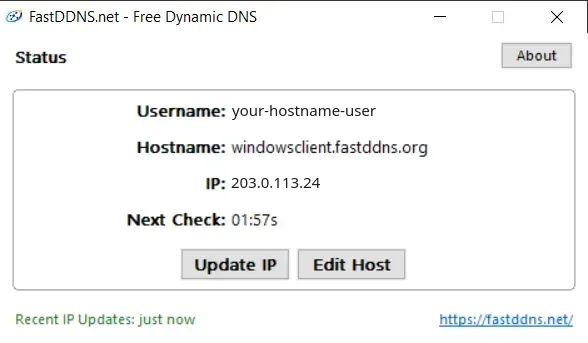
To confirm it independently, open the hostname page: the address under the name should match what the client shows, and Last Updated should be recent. The Updates from device box on that page lists each report with the status the server returned — good for an address that changed, nochg for one that did not, and badauth if the credentials are wrong.
From a machine outside your network, the name should resolve to the same address:
nslookup myhome.fastddns.org 1.1.1.1What this does not do
It does not open anything
The client keeps the name correct. Reaching the machine or the camera from outside still needs a port forwarded on the router — 3389 for Remote Desktop, whatever your camera client uses, and so on. The note on DDNS and port forwarding covers why. Check the result from outside with the port checker.
It does not get you through CGNAT
This one is worth being precise about, because the two halves behave differently. If your provider shares one public address between many customers, the client will still report an address and the hostname will still update — but that address is not yours alone, and inbound connections do not reach you. DDNS is not the missing piece there; a VPN or a tunnel is a different approach to the same goal.
It does not give you HTTPS
FastDDNS issues the hostname, not a TLS certificate. Anything you serve on that name over plain HTTP travels in the clear.
When it stops working
- The client will not sign in. Re-copy the username and the key from the panel. Nearly every failure here is the account password used instead of the hostname's own.
- The client is running but the hostname is stale. Press Update IP and watch the hostname page. If the client reports success and the page does not move, read the update log there for the status the server sent back.
- It works during the day and stops at night. The PC is sleeping. Turn off sleep on a machine that is meant to keep a hostname alive; a screen that switches off is fine, a machine that suspends is not.
- It stops after a restart. Check whether the client came back up with Windows. The simplest test is to reboot the PC once, leave it a few minutes and look at Last Updated on the hostname page — if it has not moved, the client needs starting again, or adding to the machine's startup items.
- The name is right but nothing connects. That is the router, not DDNS: the port is not forwarded, a firewall on the PC is blocking it, or a second router in front of the first is swallowing the rule.
Frequently Asked Questions
Which password does the client want?
The one on the Windows PC card of your hostname page — a short code belonging to that hostname, shown there as the password and asked for by the client as the key. Your website password will be refused.
Does the PC have to be the machine I want to reach?
No. It only has to be on the same internet connection, because everything behind your router shares one public address. A small always-on PC can keep the hostname current for a camera, a NAS or a recorder that cannot report for itself.
Can I run it for several hostnames on one PC?
There is rarely a reason to. Every device behind the router shares the same public address, so one hostname already covers all of them — tell devices apart by port instead. Extra hostnames pointing at one address use up the quota on your plan without gaining anything.
Is the client free?
Yes, and so is a hostname to use it with — the free plan includes one permanent hostname, renewed yearly. The paid plans exist for people who need more hostnames or hostnames that never expire.