What DDNS does on a Xiongmai DVR — and what it does not
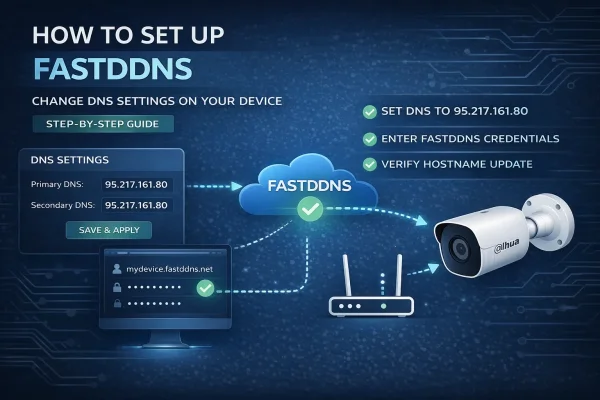
To give a Xiongmai recorder a fixed name, set the recorder's DNS servers to 95.217.161.80, then open Network > DDNS, pick NO-IP as the DDNS type and fill in your FastDDNS hostname, username and hostname password. From then on the recorder reports its public IP on its own, so XMEye, vMEyeSuper, GoodEye and the CMS software keep finding it under the same name.
DDNS only keeps the name pointed at the right address. You still have to forward port 34567 on your router, and none of it works if your provider puts you behind CGNAT.
Why picking "NO-IP" still gives you a FastDDNS hostname
Xiongmai firmware ships with a closed list of DDNS providers — usually NO-IP, DynDNS, CN99 and Oray — and you cannot add FastDDNS to it. What you can change is where the recorder looks up names. When the recorder tries to reach the No-IP update server, it asks its DNS server for the address, and FastDDNS's DNS answers that name with its own address. The update travels the DynDNS protocol the recorder already speaks, and lands on a FastDDNS hostname instead.
That trick has a price, and it is the reason this article is not the only method. The FastDDNS DNS server answers non-FastDDNS names with its own address as well — checked on 2026-09-03 against dynupdate.no-ip.com, members.dyndns.org, google.com, pool.ntp.org and smtp.gmail.com. Two consequences follow:
- Set this DNS address only on the recorder. Never on a PC, a phone, or as the DNS handed out by your router.
- Anything on the recorder that has to resolve an outside name — clock sync over NTP, email alerts to your own mail provider, the XMEye P2P cloud — may stop working once you change the DNS.
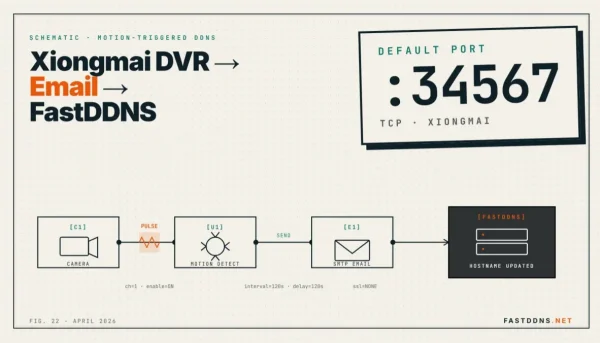
If that trade is not acceptable, the same recorder can be updated over its email settings instead, which leaves its DNS untouched — see the email alert method for Xiongmai recorders.
Before you start
Check that you have a real public IP
Open the WAN status page on your router and read the address it received. If it starts with 10., 172.16–31., 192.168. or falls inside 100.64.0.0/10, you are behind your provider's NAT and no DDNS service can open a way in. The answer on FastDDNS and CGNAT explains what is left to try in that case. The FastDDNS mobile app has a CGNAT checker if you would rather not read the router page.
Know your menu and your ports
Everything in this guide lives under Setting > System > Network on the recorder or in the CMS software connected to it. The media port that XMEye, vMEyeSuper and GoodEye use is 34567 by default, and the web interface uses 80.
Create the hostname and copy its values
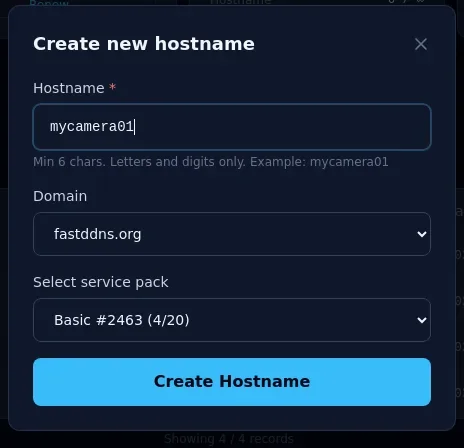
Sign in at FastDDNS and create a hostname — a name of at least six letters or digits, plus one of the offered domains such as fastddns.org.
Open the hostname you just made, scroll to DDNS Configuration Parameters and click the card named PORT 34567 (XMEYE, VMEYESUPER, GoodEye). Under Method 1 you will find every value the recorder asks for.
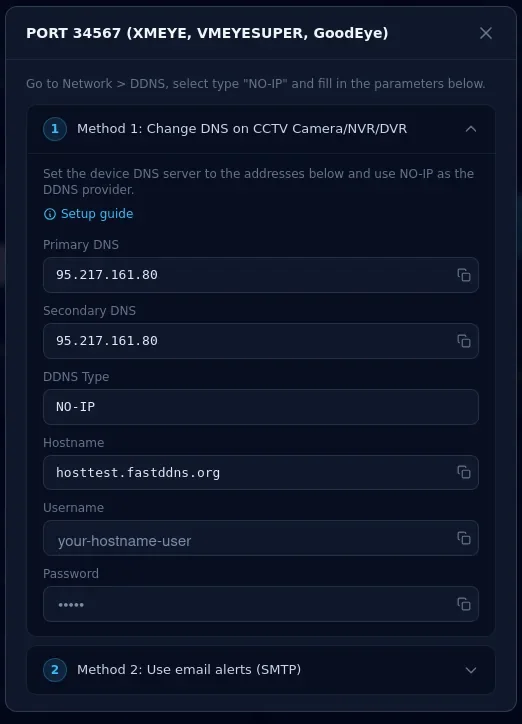
The password on this panel is a short numeric code that belongs to the hostname, not the password you sign in with. Copy it from the panel rather than typing your account password, which the update server will refuse.
Step 1 — Point the recorder's DNS at FastDDNS
Go to Setting > System > Network and enter 95.217.161.80 in both Primary DNS and Secondary DNS.
On most firmware those two fields are locked while DHCP Enable is ticked. You have to untick it to type the DNS in, and unticking it also turns off automatic addressing — so write down the IP Address, Subnet Mask and Gateway the recorder is showing first and type the same values straight back in, or it drops off the network. Reserving that same address for the recorder on the router afterwards stops it being handed to another device and keeps the forwarding rule you add later pointing at the right machine.
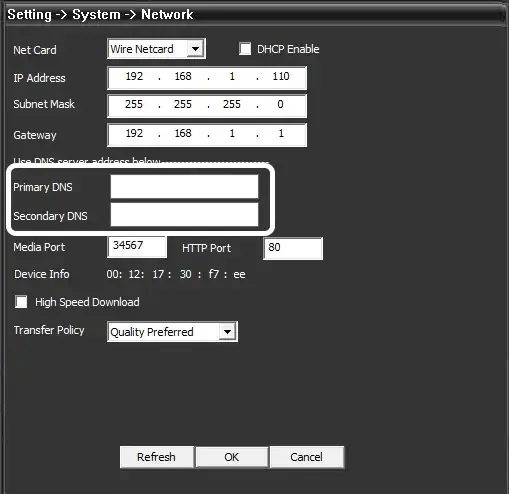
Save and let the recorder apply the change. Nothing visible happens yet — the DNS address only matters at the next step.
Step 2 — Fill in Network > DDNS
Still under Network, open DDNS and set:
- DDNS Type: NO-IP
- Enable: ticked
- Domain Name: the full hostname, for example myhome.fastddns.org
- User Name: the username shown in the panel
- Password: the hostname's numeric code
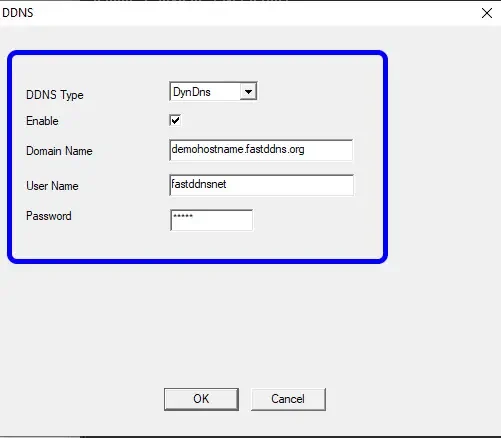
If your firmware offers no NO-IP entry, use DynDNS instead — the recorder speaks the same protocol either way, and the DNS answer sends both to the same place. Press OK, then reboot the recorder if the DDNS status stays blank.
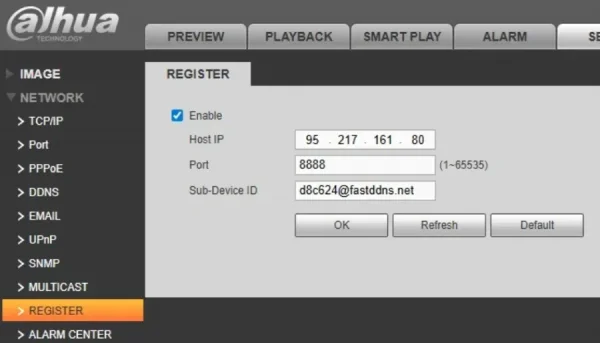
The walkthrough below covers these two steps on a live recorder.
Step 3 — Check that it worked
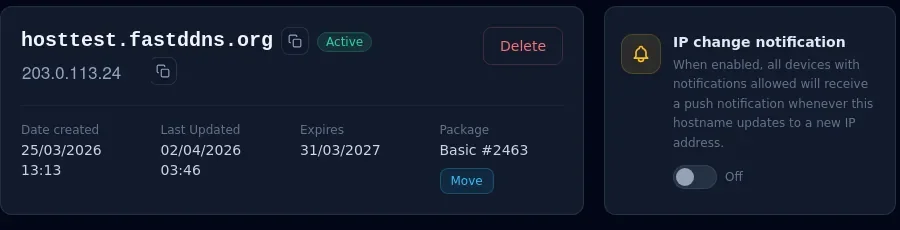
The hostname page should show your current IP
Go back to the hostname in your FastDDNS account and wait between thirty seconds and five minutes. When the recorder has reported in, the address under the hostname changes to your home IP and Last Updated moves to the current time.
Read the update log
The Updates from device box on the same page lists what the recorder actually sent, one line per attempt, with the status the update server returned. That log is where you look first when something is wrong — the table further down says what each status means.
Resolve the hostname from outside your network
From any computer that is not behind your router, ask a public resolver for the name:
nslookup myhome.fastddns.org 1.1.1.1The answer should be the same public IP the panel shows. If the two disagree, the recorder has not reported the change yet.
Forward port 34567, then test it
A working hostname does not open anything. The recorder is still unreachable until you forward 34567 to it on your router, plus 80 if you also want the web interface — the note on DDNS and port forwarding covers why. Point the rule at the recorder's LAN address and make sure that address is fixed — a DHCP reservation on the router, or the static address you set in step 1 — because the rule breaks the moment the recorder is given a different one. Then check it from outside with the port checker, which has a preset for XM 34567.
One thing a hostname does not give you is encryption. FastDDNS issues the name, not a TLS certificate, so reaching the recorder on port 80 in a browser is plain HTTP and anything you type there travels in the clear.
Troubleshooting — read the status in the update log
Each line in Updates from device carries the status code the recorder received. They are the standard DynDNS protocol replies, and each one points at a different mistake.
| Status | What the panel shows, and what to do |
|---|---|
| good | Update new IP Nothing — the hostname now points at that address. |
| nochg | No IP change Nothing. The recorder checked in and the address was already correct. |
| badauth | The account name or password you entered is incorrect Re-copy the username and the hostname's numeric password from the panel. Check you did not use your account password by mistake. |
| nohost | This hostname does not exist Check the spelling and make sure the domain part is included. |
| notfqdn | The hostname format is invalid The name the recorder sent was not accepted as a full hostname. Re-enter it with the domain part included. |
| abuse | This hostname has been blocked due to abuse The update server has blocked this hostname. Contact support to find out why and to have the block lifted. |
| dnserr | DNS update failed. Please try again. The update failed on the server side. Wait for the next attempt, and contact support if the line keeps repeating. |
| 911 | The update server is temporarily unavailable Wait and let the recorder retry. |
Three problems never reach the log at all:
- The log is empty. The recorder is not sending anything. Re-check that DDNS is enabled and that the DNS address from step 1 really saved.
- The name resolves correctly but nothing opens. Port 34567 is not forwarded, or a second router in front of the first is swallowing the rule.
- The recorder loses its clock, or stops sending email alerts. That is the DNS change from step 1 doing exactly what it was warned to do. Move to the email method instead of undoing the setup.
If changing the DNS is not acceptable
Three other ways exist to keep the same hostname current, and they differ in what they touch.
- Email alerts. The recorder reports through its own email settings and its DNS is never touched, which is the right choice when NTP or the P2P cloud has to keep working — the SMTP method for Xiongmai recorders lists the values.
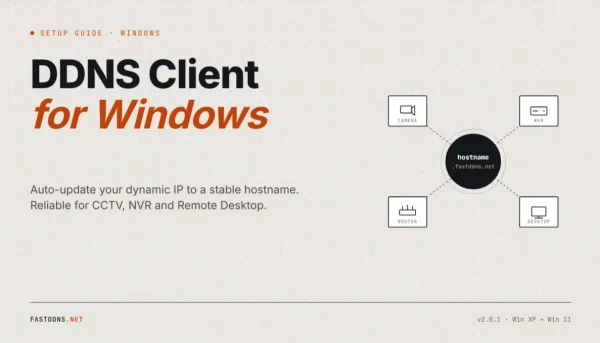
- An update client on a PC. Any always-on Windows machine on the same connection can send the updates instead of the recorder, as described in the Windows DDNS client guide.
- Guided setup in the app. The FastDDNS mobile app configures supported brands, Xiongmai included, by writing the recorder's own DDNS entry first; it falls back to changing the DNS exactly as this article does when the recorder refuses that entry.
Frequently Asked Questions
Do I still need port forwarding once DDNS works?
Yes. DDNS keeps a name pointed at your changing public IP; it does not open anything. To reach the recorder from the internet you still forward port 34567, and port 80 as well if you want the web interface.
Why does my recorder lose the correct time after I change the DNS?
Because the DNS server used for this method answers outside names with its own address, so the recorder can no longer reach a public time server. Set the clock by hand, or use the email alert method, which leaves the recorder's DNS alone.
Can two recorders on the same connection share one hostname?
One hostname is enough for a whole connection, because every device behind the router shares the same public IP. Give each recorder a different forwarded port instead of a second hostname; creating extra hostnames for one address wastes the quota on your plan and can trigger the abuse limit.
My firmware has no NO-IP entry. What now?
Use the DynDNS entry with the same hostname, username and password. Both entries speak the same update protocol, and the DNS server answers for both provider names. If the firmware has no DDNS section at all, the recorder can still report through its email settings, or a PC on the same connection can send the updates on its behalf.